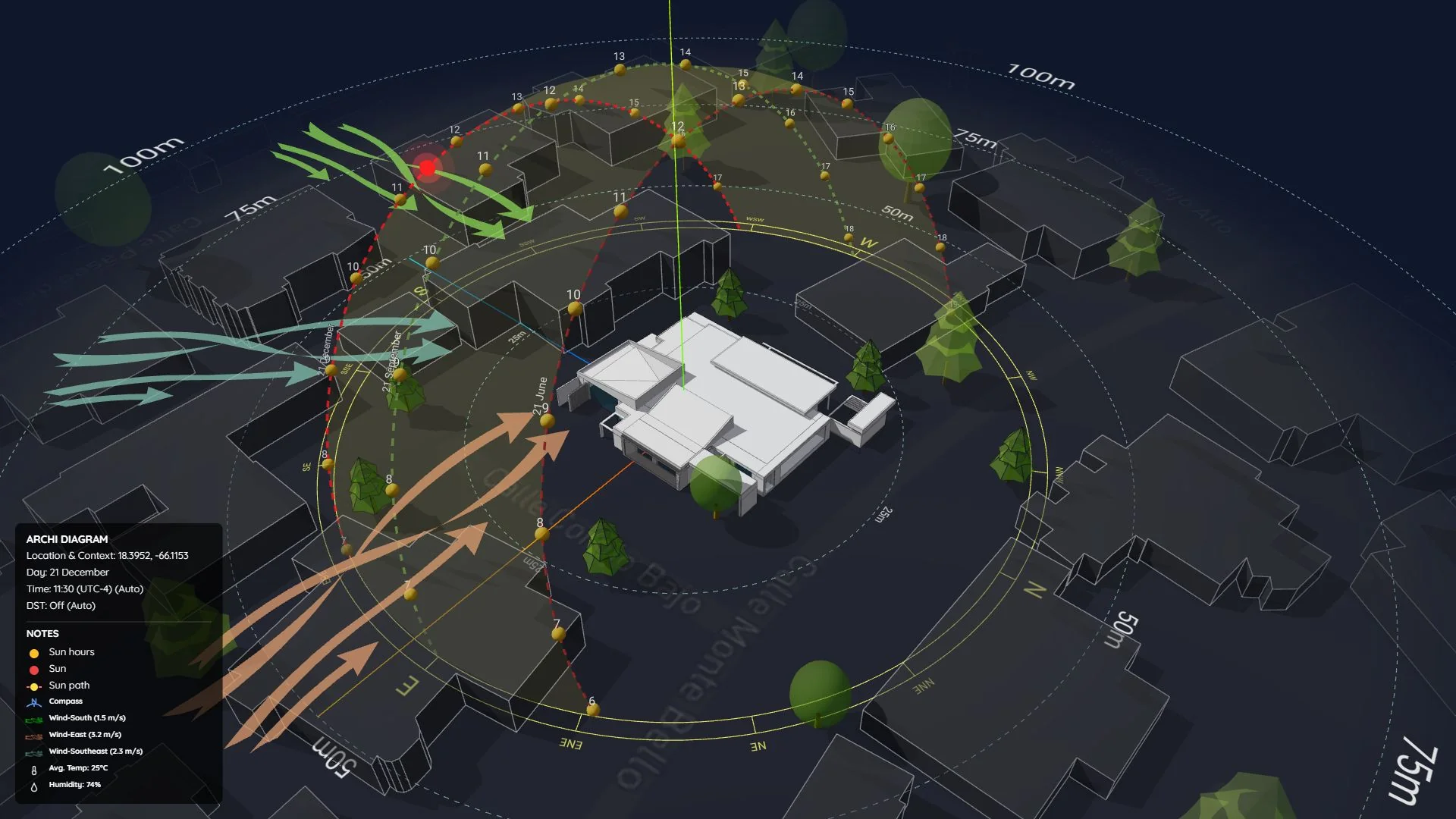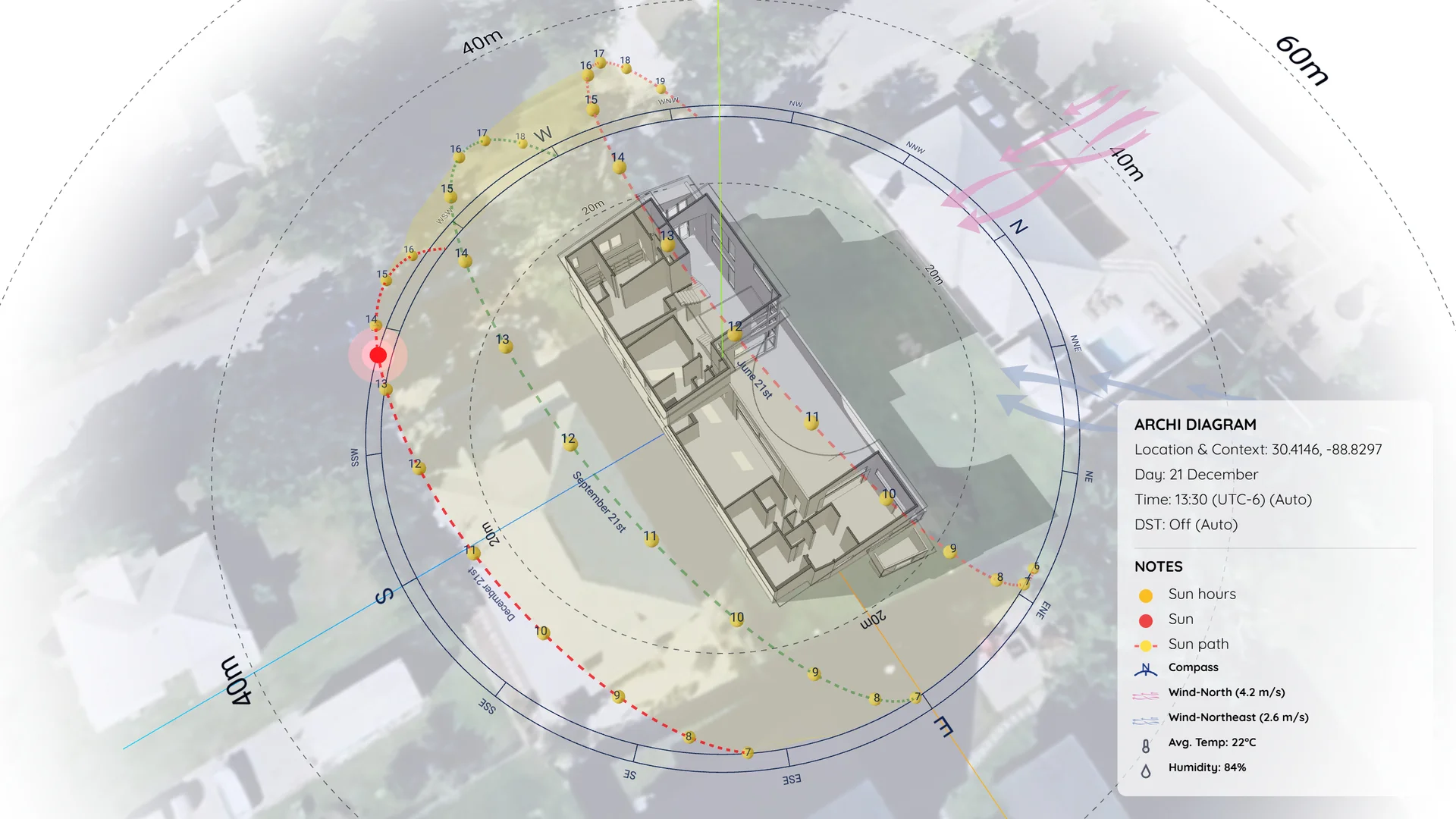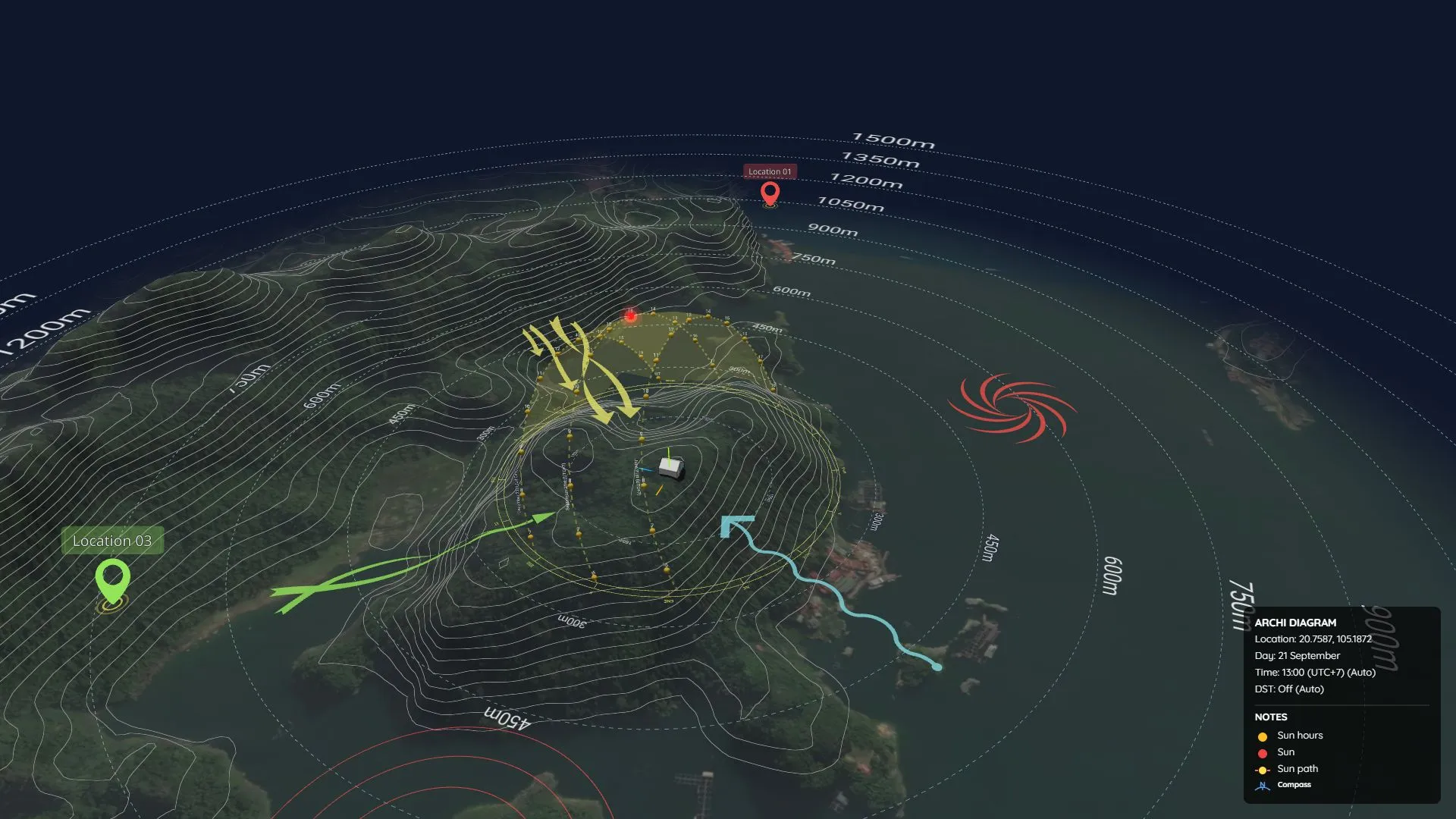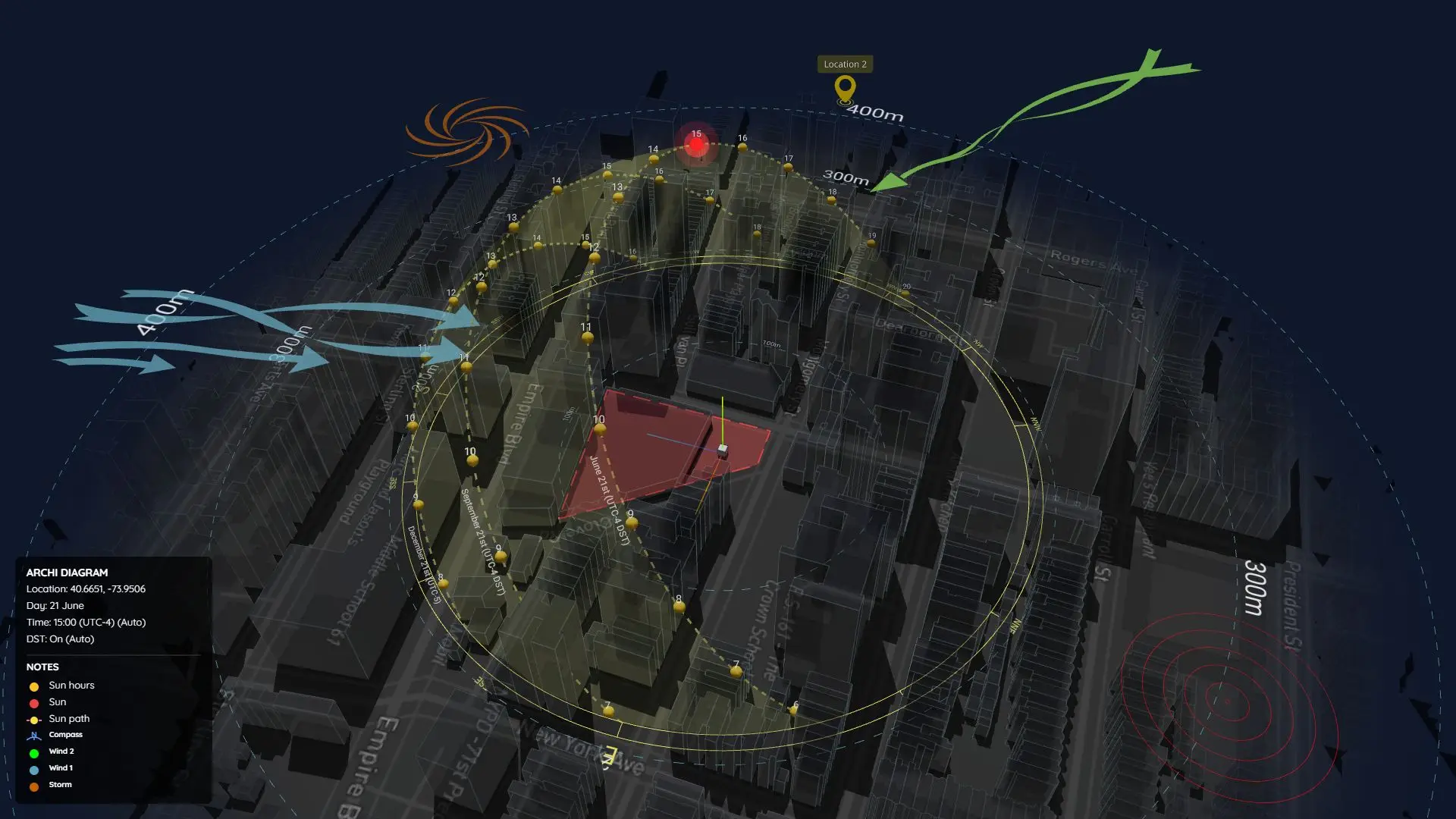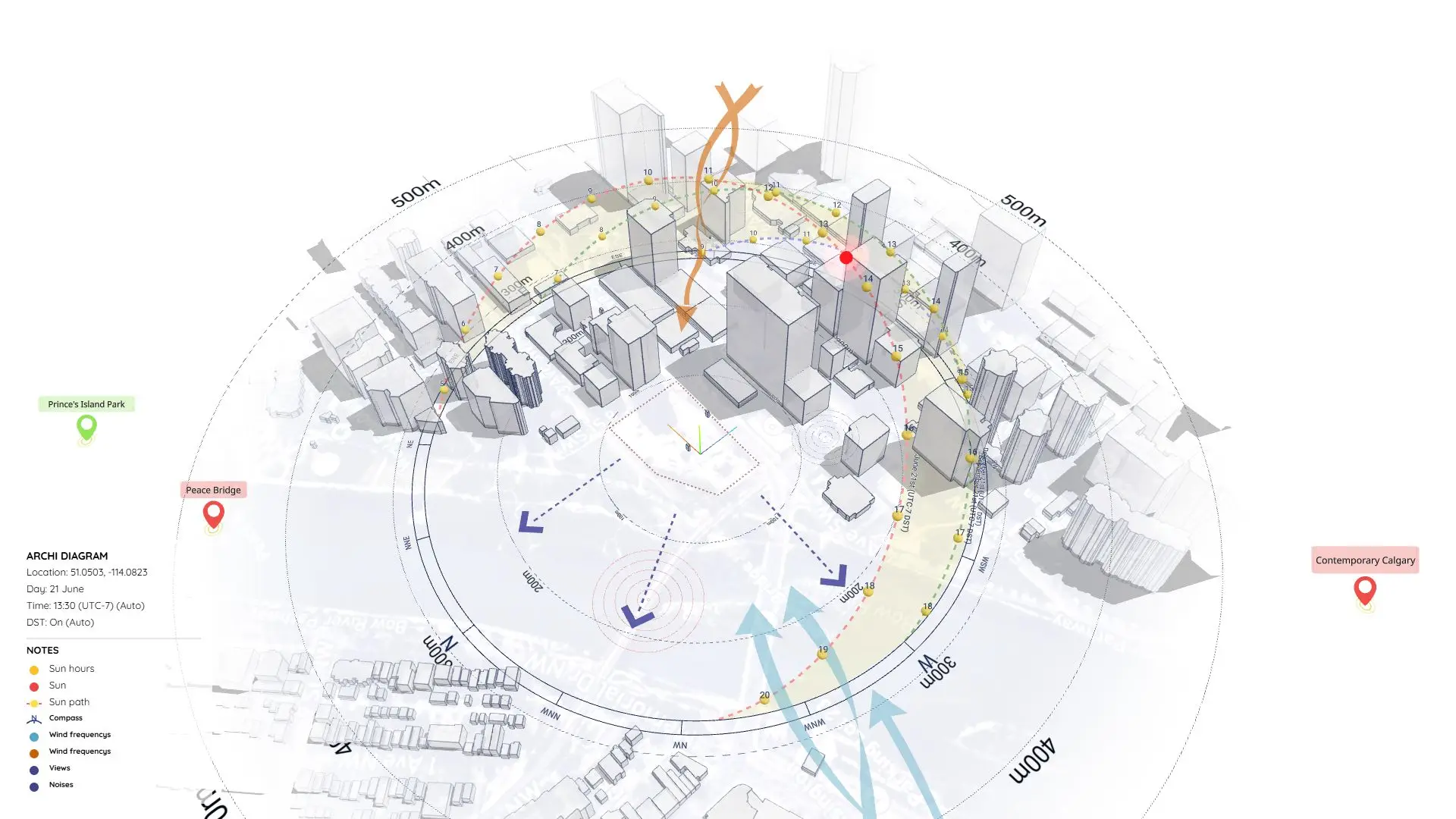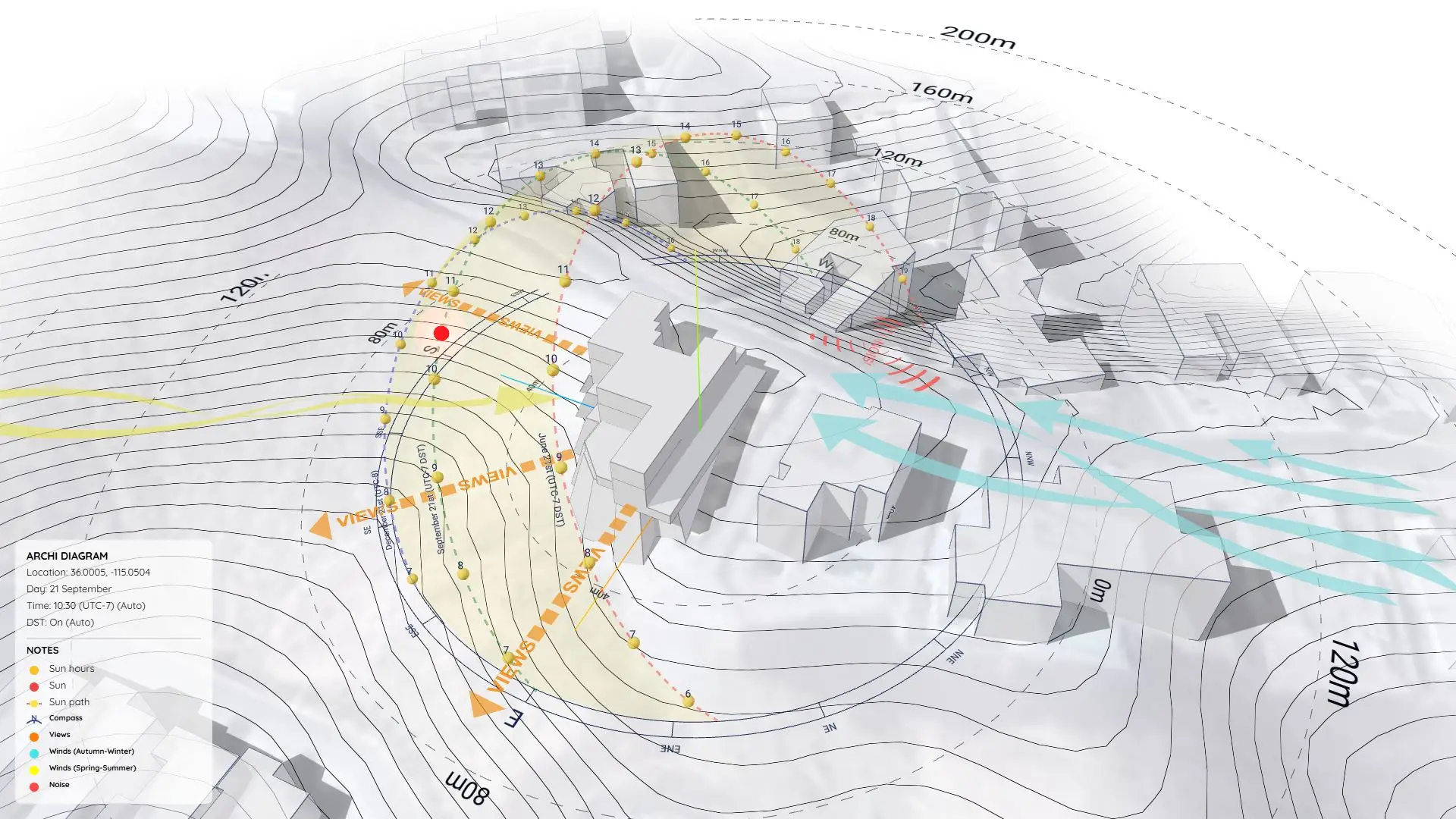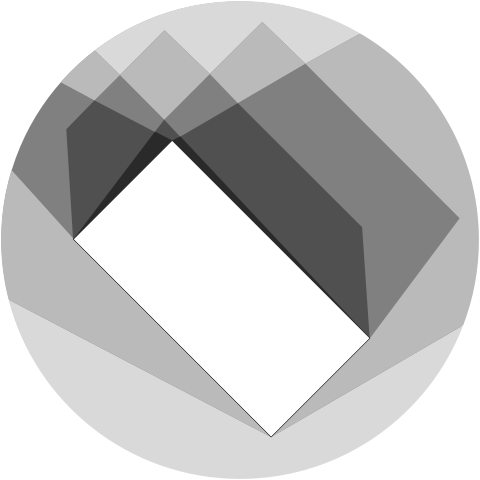
The ultimate web-based architectural diagramming tool. No heavy 3D software required. Get physically accurate shadows, instant context maps, and dynamic animated symbols directly in your browser.
A Complete Workflow in 5 Steps
1. Locate Your Project Instantly
Simply type your project’s address or paste the coordinates. The 3D space will instantly center on your location, generating a perfectly scaled 1:1 satellite map and surrounding 3D buildings.
How to use:
- Open the Location & Context tab on the left menu.
- Type a city or address and press Enter. The location, UTC timezone, and DST are fully automated.
- Toggle the Context Map to show a perfectly scaled 1:1 satellite background.
- Adjust the True North (North Offset) slider to seamlessly rotate both the map and the sunpath to match your model’s orientation.
- Toggle 3D Context Buildings and Context Map to display the surrounding site context and existing buildings.
2. Build or Import Your Massing
Use our built-in basic shapes for quick massing, or import your own optimized 3D models (.glb). Easily customize colors and materials right in the browser.
How to use:
- Open the Import tab on the left menu.
- Click Choose 3D file to upload your optimized
.glbor.gltfmodel (ensure it’s exported in Meters). - Alternatively, click on the Basic Shapes for quick conceptual massing.
- Select your imported model and use the Materials Tab to change colors, adjust opacity, or toggle Cast/Receive Shadows.
3. Physically Accurate Solar Analysis
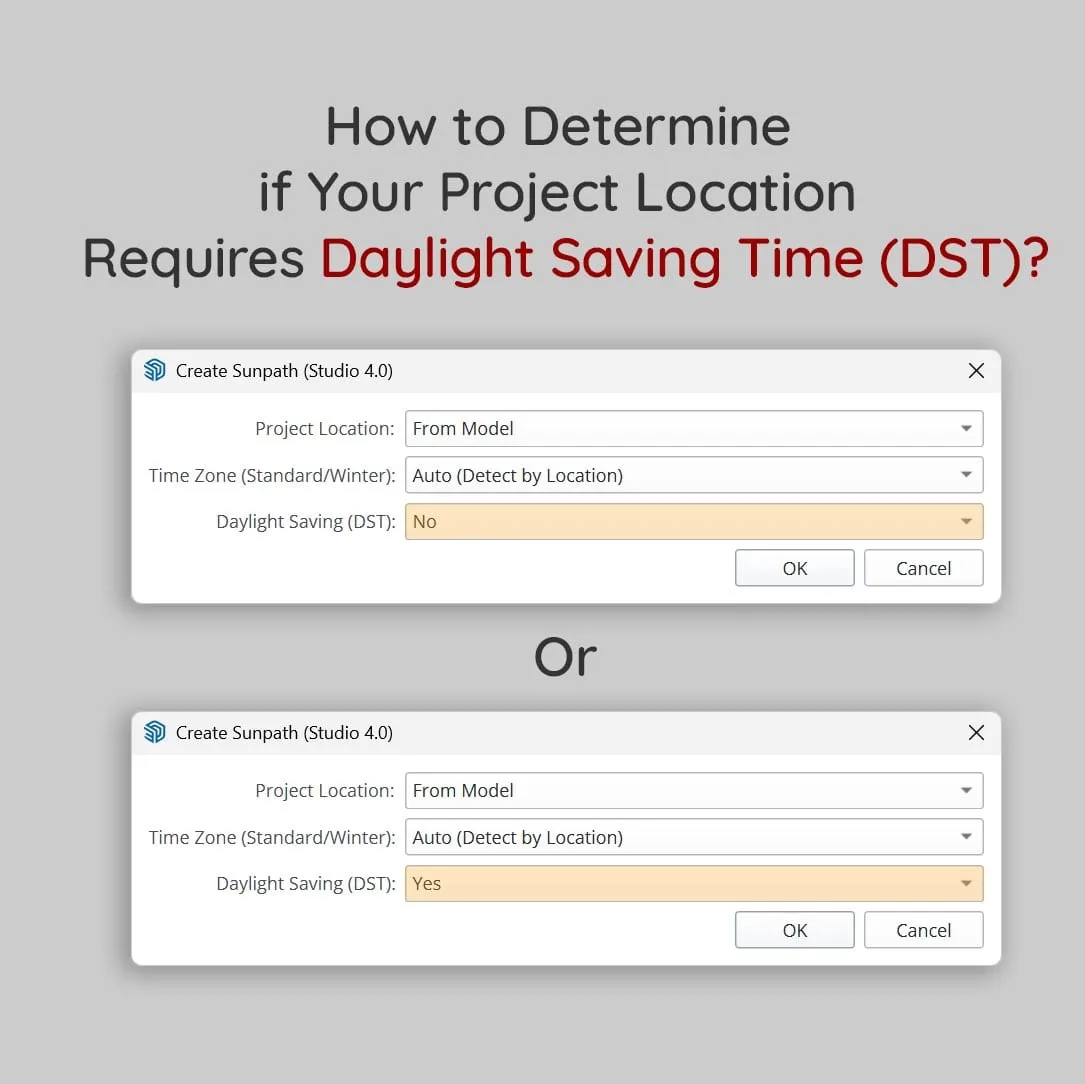
Our algorithm automatically calculates precise shadows and sun paths based on your GPS coordinates, UTC time zone, and Daylight Saving Time (DST).
How to use:
- Open the Sun Diagram tab. The 3D Sun path is automatically generated based on your location.
- Go to the Shadow tab and check the months you want to analyze (e.g., June and December Solstices).
- Drag the Time of Day slider to simulate shadows moving in real-time.
- The system automatically handles Daylight Saving Time (DST) and visualizes the correct UTC offset right on the viewport.
4. Bring Your Diagrams to Life
Drag and drop from our library of architectural symbols to annotate wind directions, noise sources, and traffic flow.
How to use:
- Open the Dynamic Symbols tab to access the library of wind arrows, compasses, pins, and other symbols.
- Drag and drop symbols directly onto the ground plane.
- Use the Top Bar Tools (Move, Rotate, Scale) to position them perfectly.
- In the Properties panel, you can customize colors, change animation types, and check Enable Animation with a Speed slider to make them move smoothly.
- To replace a symbol while preserving its exact position, color, and scale, right-click it and choose Symbol Change.
- To add a symbol to the NOTES legend, click the + button on the Note panel and select the object, or simply right-click the object and choose Add to note.
5. Export with One Click
Export crisp, high-resolution still images (PNG/PDF) for your boards, or render smooth animated videos effortlessly.
How to use:
- Open the Export tab.
- Choose your desired resolution (up to 4K) and format (PNG, PDF, or VIDEO).
- If exporting a VIDEO, use the Batch Export Shadows panel to select a specific month and start/end hours.
- Click Export. The cinematic video will pause for 1 second at the start and end while symbols keep animating for a professional presentation!
Bonus: Built-in AI Assistant
Need help while working? The Archi Diagram Web App features a smart AI Assistant located in the bottom right corner of the application. It is pre-loaded with our complete tutorial database and can provide instant, step-by-step answers to any questions you have while using the tool!