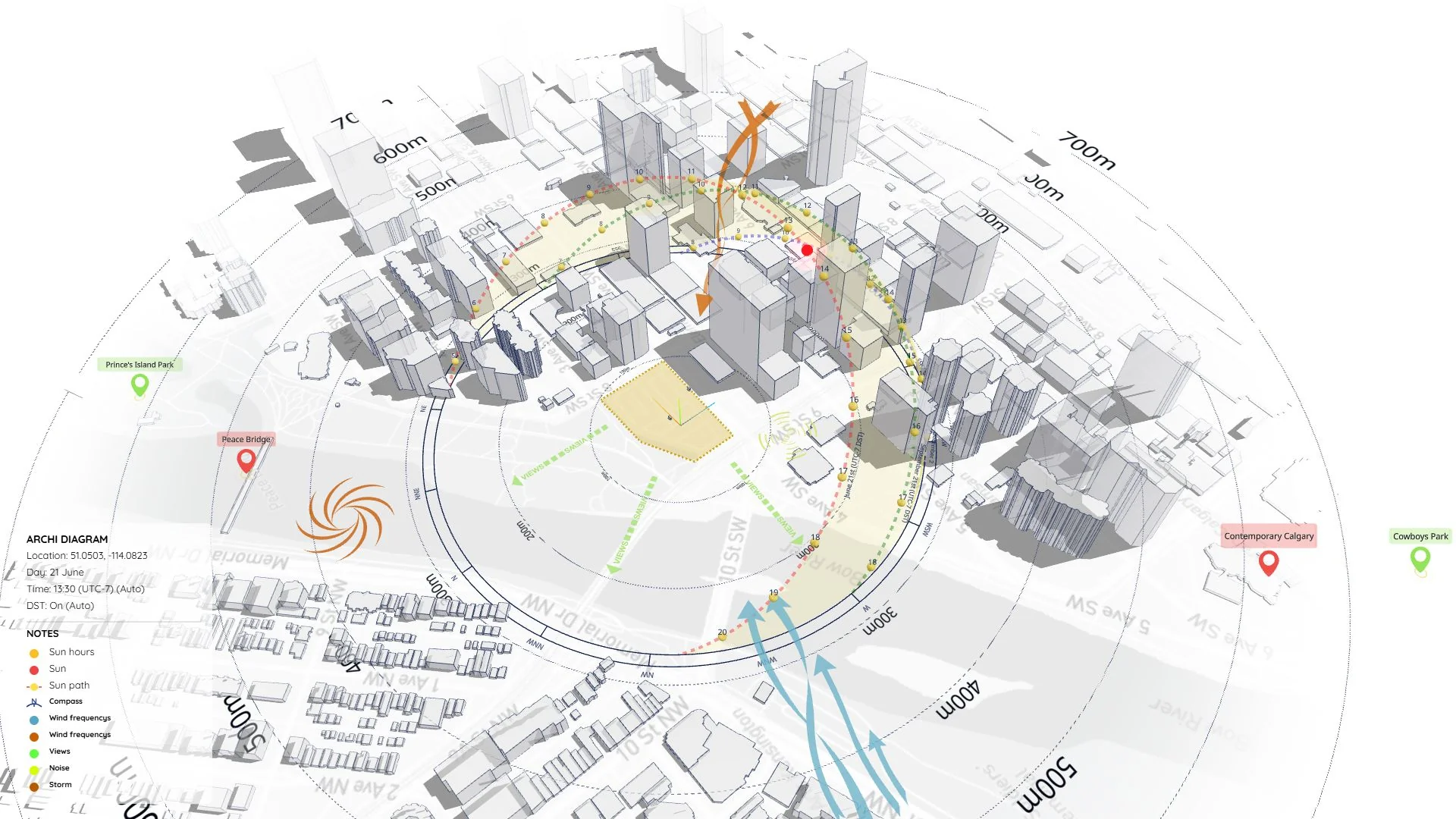
Want to bring your site analysis to life? In this video tutorial, I’ll show you how to create a dynamic 3D context diagram in Archidiagram—combining an animated sun path, real-time shadows, and motion symbols into one visually striking presentation.
A Complete Workflow in 7 Steps
1. Initialize Your Project
Start at the Home screen and navigate to the New Project tab. Select the Dark Mode template to give your diagram a sleek, modern look.
Pro Tip: You only need to build your diagram once! You can effortlessly toggle between Dark and Light themes via Global Settings to suit different presentation contexts.
2. Define Site Location & Topography
Click Change Location and pinpoint your site directly on the map. Center your project on the Pin location and hit Confirm Location.
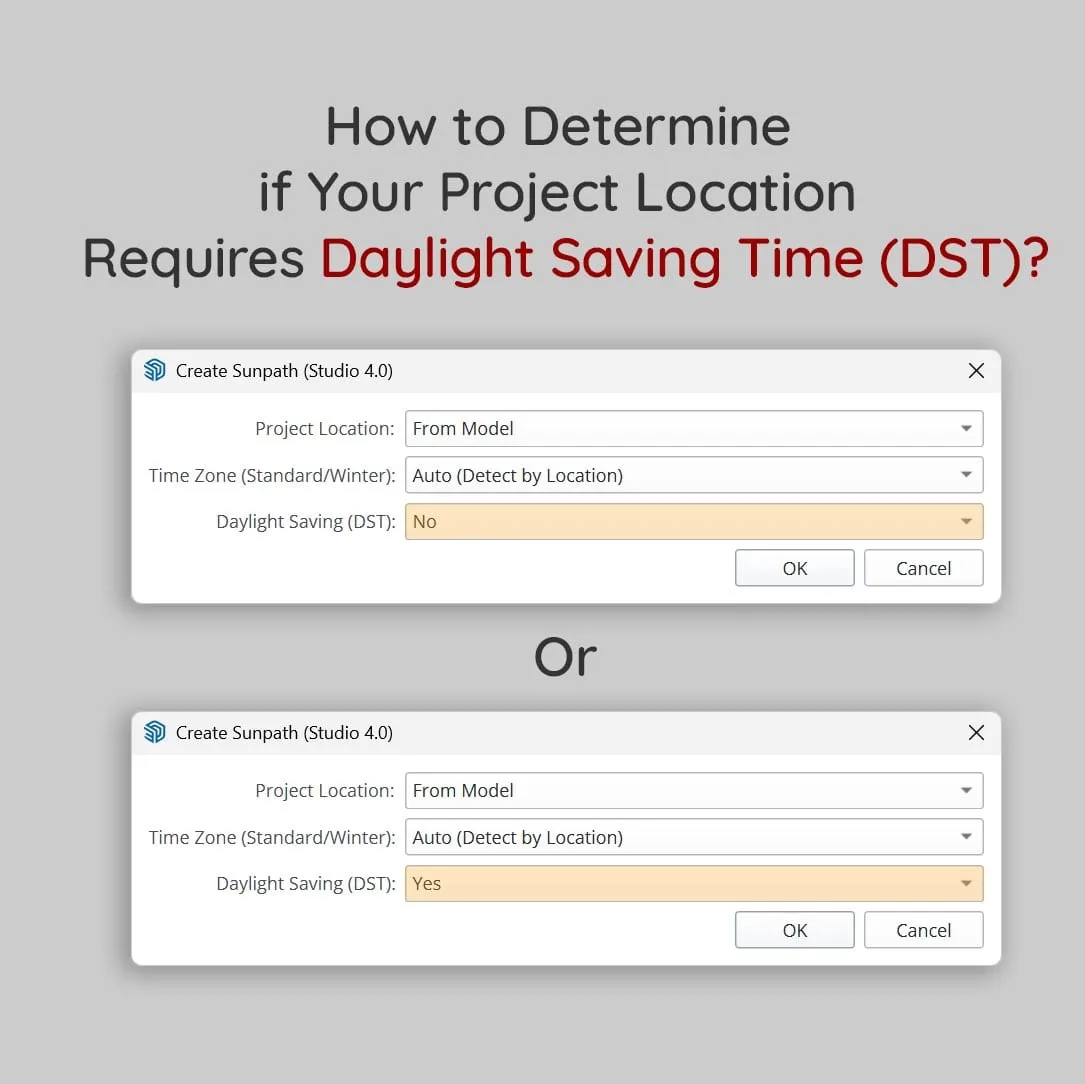
- Smart Sun Data: The Sun Diagram will instantly update, automatically calculating UTC and DST without any manual input.
- Context Radius: For expansive sites (e.g., a project surrounded by a large lake and complex terrain), maximize the Diagram Radius up to 1500m. Adjust the Zoom Level to ensure the satellite map perfectly covers your site.
- Topography & Scale: Enable Contour Lines to illustrate terrain elevation (you can customize their color, quantity, and intervals). Turn on Distance Rings to maintain a precise scale reference, regardless of your zoom level or unit system (metric/imperial).
Pro Tip: Can’t find a specific tool? Simply type its name into the Search bar near the logo to instantly locate the feature you need.
3. Configure Sun Path & Orientation
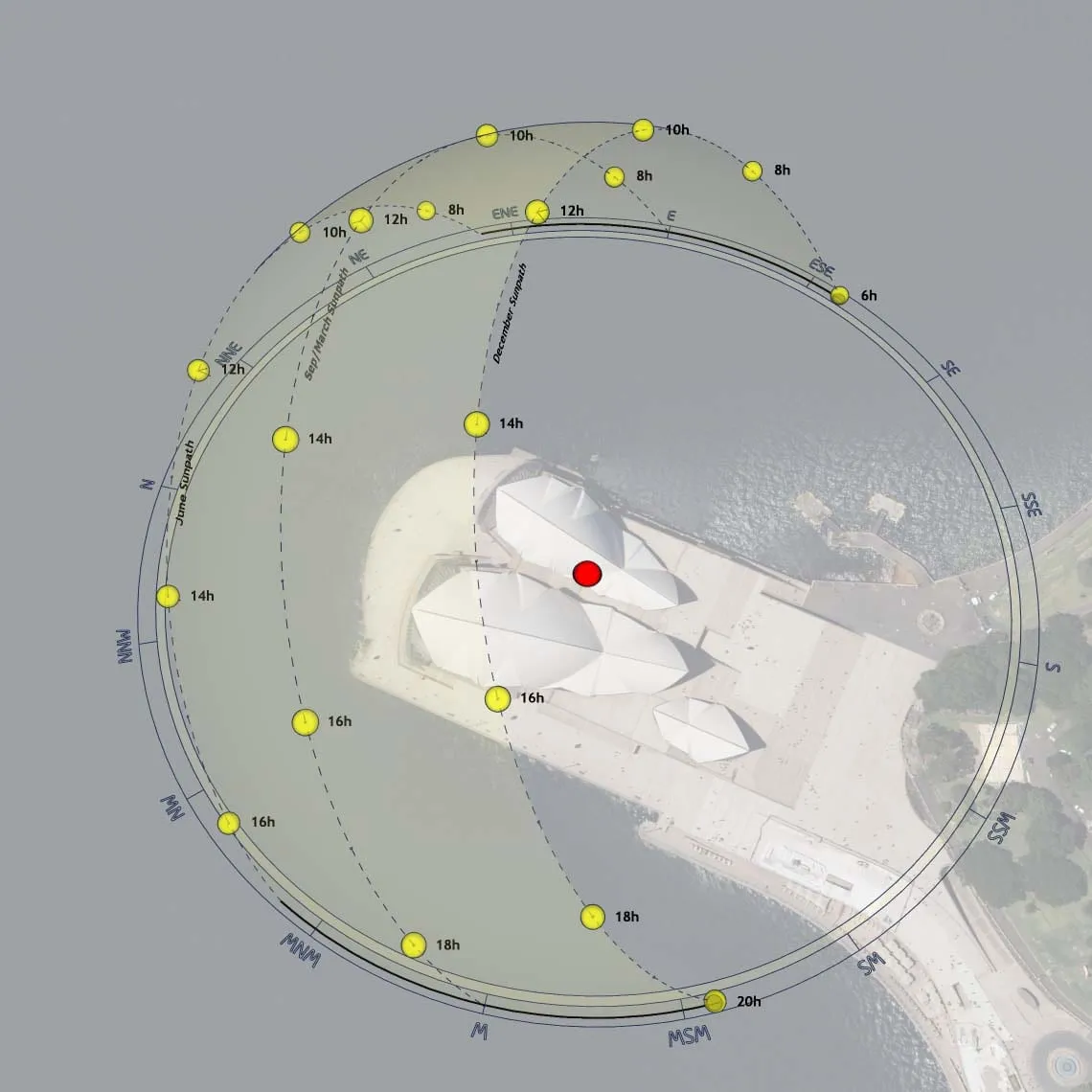
Scale the Sun Path diagram to comfortably fit your massive 1500m radius. Rest assured, scaling the sun path visually does not alter the physical accuracy of the shadow casting.
- True North: By default, the diagram’s North aligns with the compass. If you need to rotate it to match your imported 3D model, simply adjust the True North rotation (found in Location & Context).
- Z-Axis Alignment: Use the 3D Elevation Offset to adjust the overall terrain height, ensuring your Sun Path diagram remains unobstructed by the site’s natural topography.
4. Import Architectural Massing
Bring your design into the context by importing your 3D model (.glb format).
Performance Tip: Since Archidiagram is a powerful web-based application, we highly recommend importing simplified architectural massing models rather than heavy, highly-detailed SketchUp files. This ensures a buttery-smooth workflow.
5. Populate Context with Motion Symbols
Bring your diagram to life! Drag and drop elements from the Symbols Library directly onto your site.
- Smart Animation: Symbols animate automatically upon placement. To optimize hardware performance while editing, temporarily turn off animations, and re-enable them right before exporting.
- Cross-Platform: The intuitive interface mimics professional 3D software and is fully optimized for mobile and tablet devices, allowing you to work seamlessly on the go.
- Custom SVGs: Change symbol colors with a single click. Need a custom graphic? Import your own 2D
.svgfiles, and Archidiagram’s engine will automatically breathe life into them with built-in animations.
6. Customize Aesthetics & Plan Overlays
Your diagram is taking shape. Now, head over to the Style panel of the Sun Diagram to tweak colors and line weights, establishing a unique visual signature for your architectural brand.
If needed, you can also overlay 2D images—perfect for placing a masterplan or floor plan directly onto the terrain, right beneath your 3D massing.
7. Export Your Masterpiece
Ready to present? The export process is incredibly straightforward. You can render high-resolution static images, batch export multiple views, or generate a stunning MP4 video.
Don’t forget to turn the animations back on before exporting your video to capture the dynamic motion!
The Final Results
Here is a look at the final outputs, showcasing both the stunning Dark Mode and the clean Light Mode visualizations you can achieve with Archidiagram:
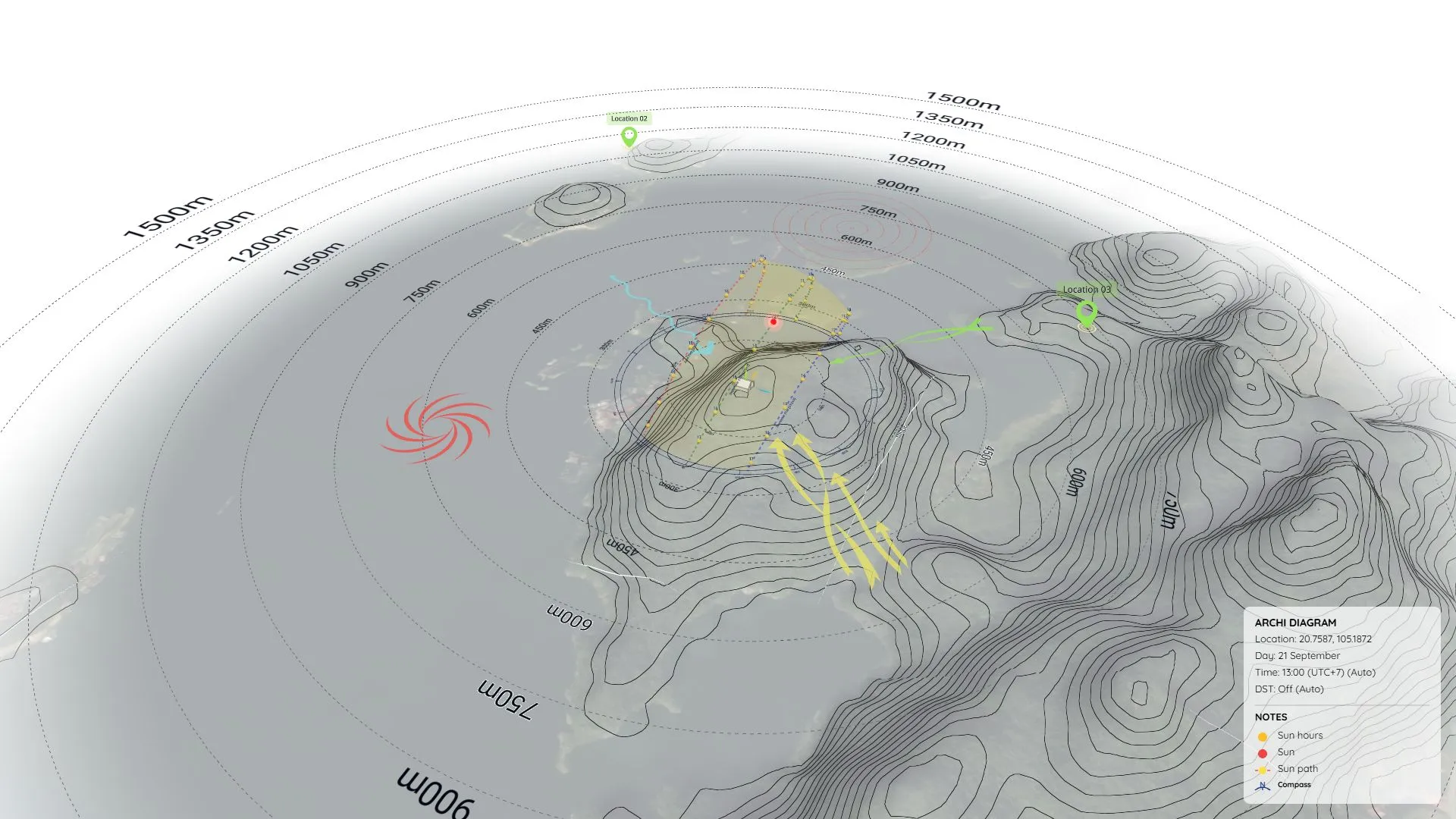
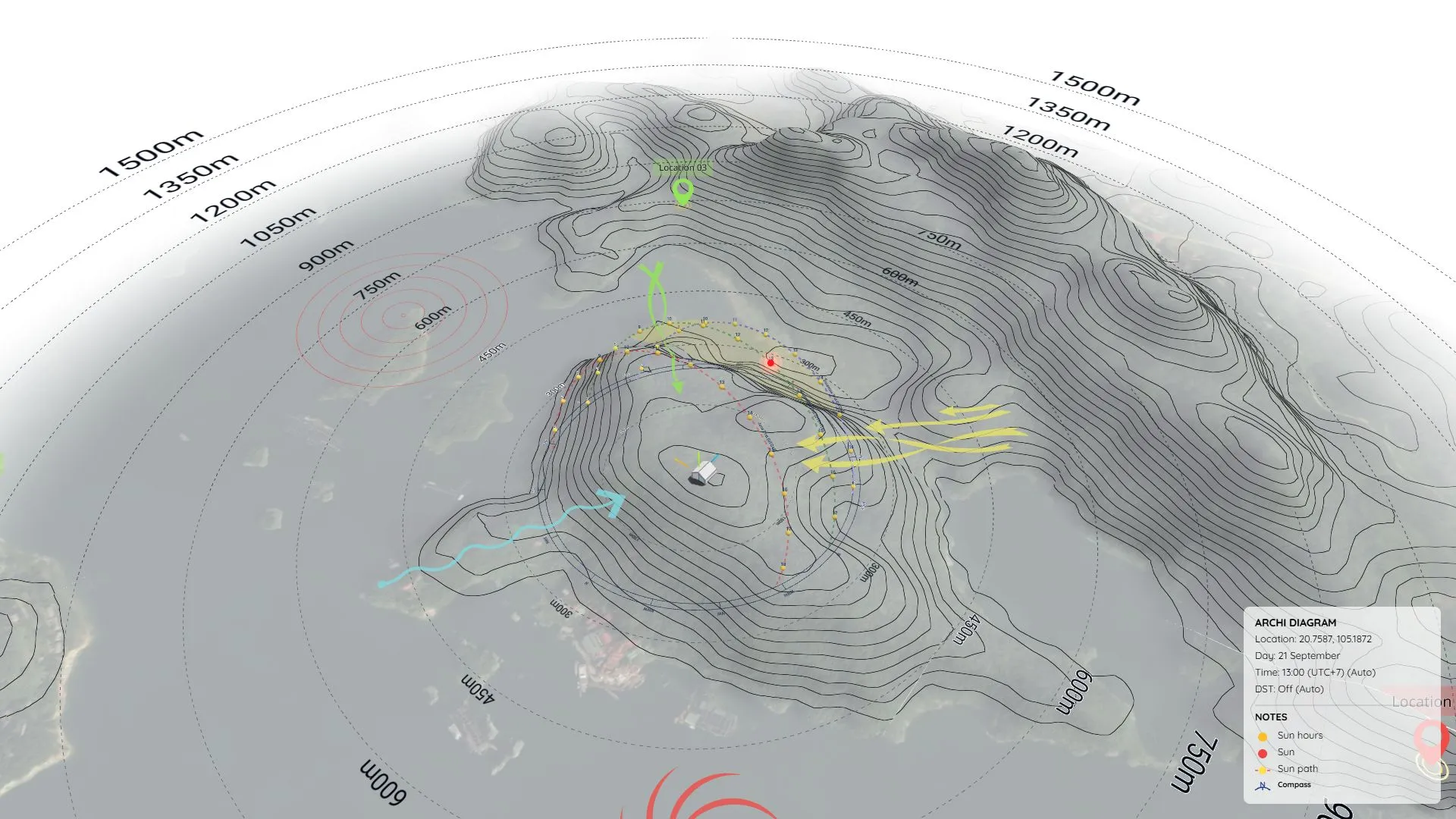
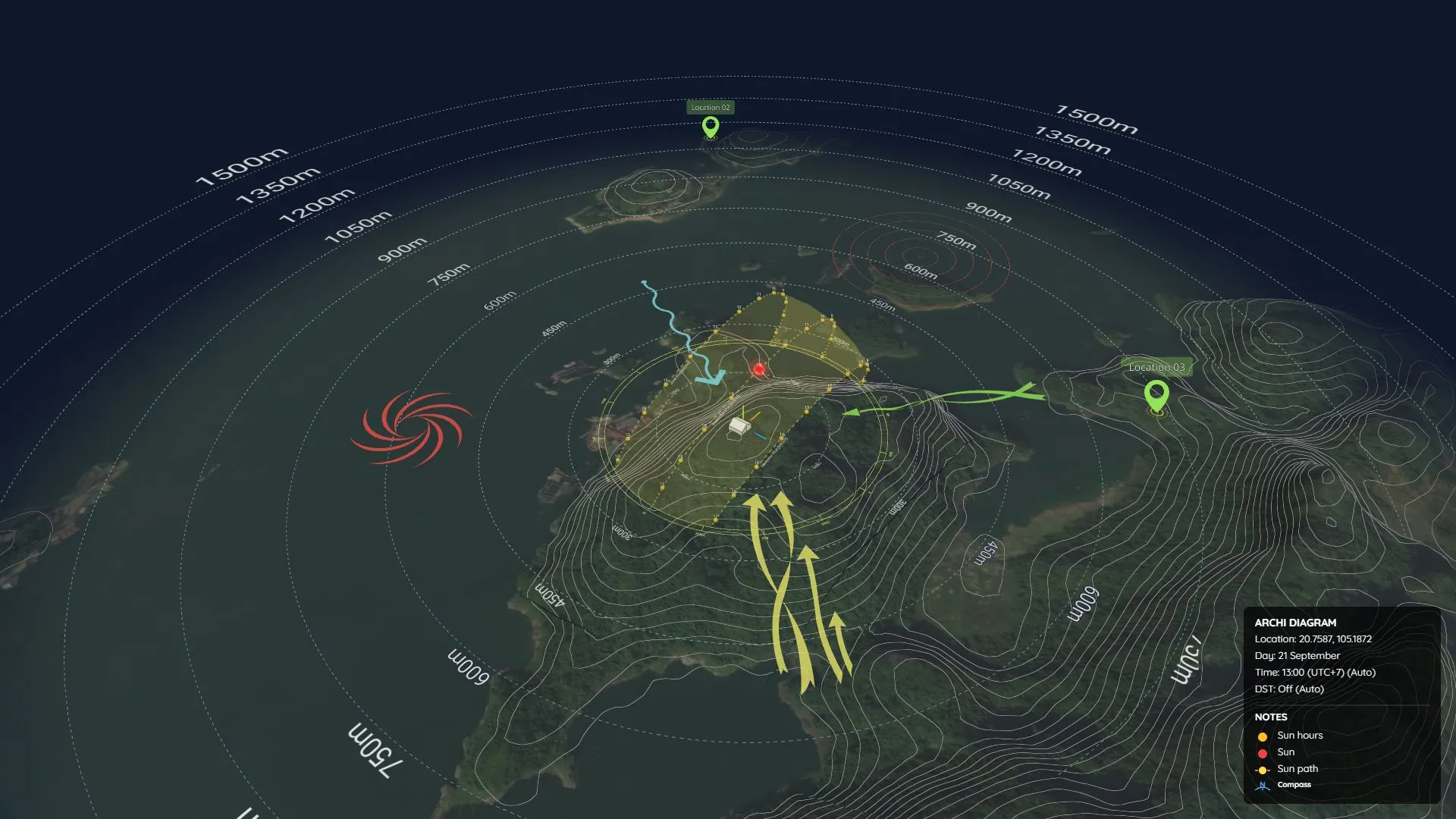
And that’s how you build a dynamic site analysis in just a few minutes! If you found this tutorial helpful, don’t forget to try out Archidiagram for your next project.