Guide: How to Determine if Your Project Location Requires Daylight Saving Time (DST)
When performing shadow and natural light analysis for an architectural project, the accuracy of your time data is essential. One of the most frequently misunderstood settings is Daylight Saving Time (DST).


This guide will help you quickly and accurately determine whether you need to enable DST when setting up your sun data for your site.
1. What is DST and why does it matter?
Daylight Saving Time (DST) is the practice of advancing clocks forward by one hour during the warmer months to extend evening daylight.
Why it matters in architecture: If your project is located in a region that observes DST, and you are analyzing a summer day but forget to enable the DST setting, your shadow projections will be off by exactly one hour compared to reality. This discrepancy can lead to critical errors in facade shading design and energy calculations.
2. General Rules for DST Zones
Not every country or region observes DST. Here is a general breakdown:
Regions that DO NOT use DST (Usually OFF): Countries near the equator or in tropical zones, such as Southeast Asia, most of Africa, the majority of South America, and specific US states (like Arizona and Hawaii).
Regions that DO use DST (Turn ON during summer): Most of North America (USA, Canada), all of Europe, and parts of Australia and New Zealand.
3. How to check with 100% accuracy for any location
Because local DST rules can change depending on local laws, the best practice is to verify the location online.


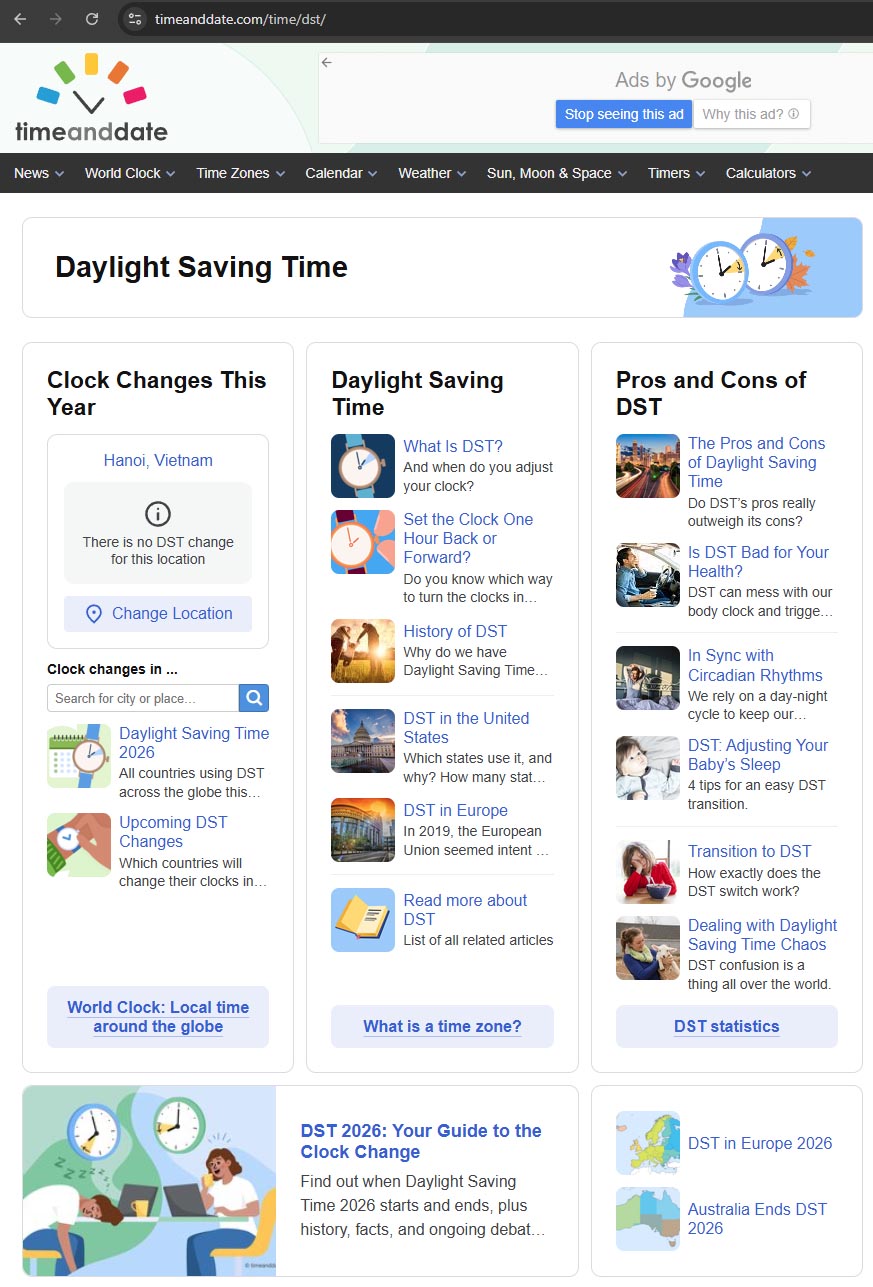
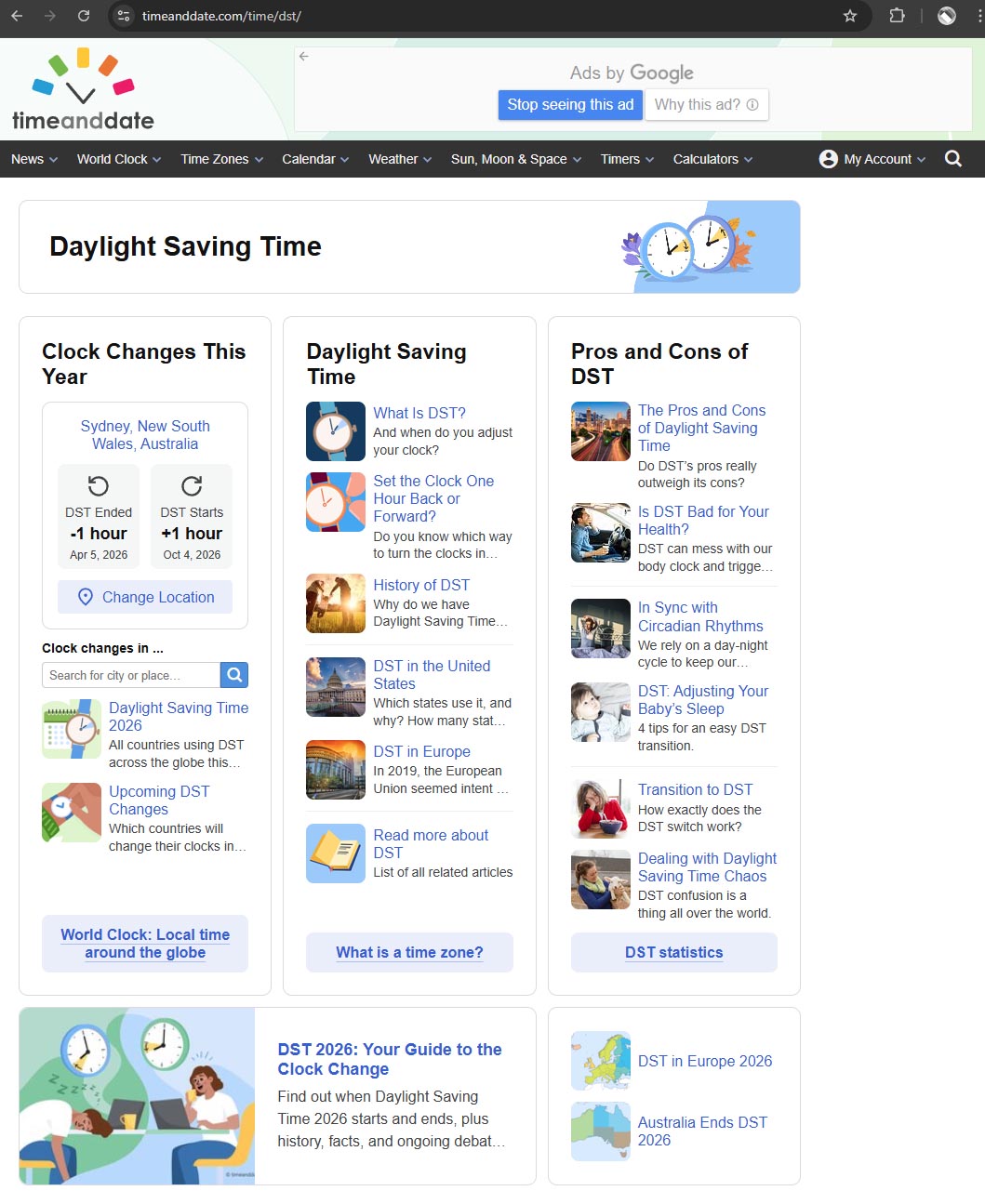
Step 1: Use TimeAndDate.com
This is the most reliable tool for architects to verify solar and time data.
- Go to:
https://www.timeanddate.com/time/dst/
- Enter the city or country of your project into the search bar.

Step 2: Read the results
Scroll down to the Time Zone or Daylight Saving Time section on the city's page:
- If the page states "No daylight saving time in [Year]"
- If the page states "DST starts on..." and "DST ends on..."
4. Applying it to Your Analysis Plugin (e.g., Sun Diagram)


If you are using the Sun Diagram extension, handling DST is incredibly simple thanks to its built-in smart automation. You don't need to manually toggle the settings back and forth depending on the month.
Here is the only thing you need to do:
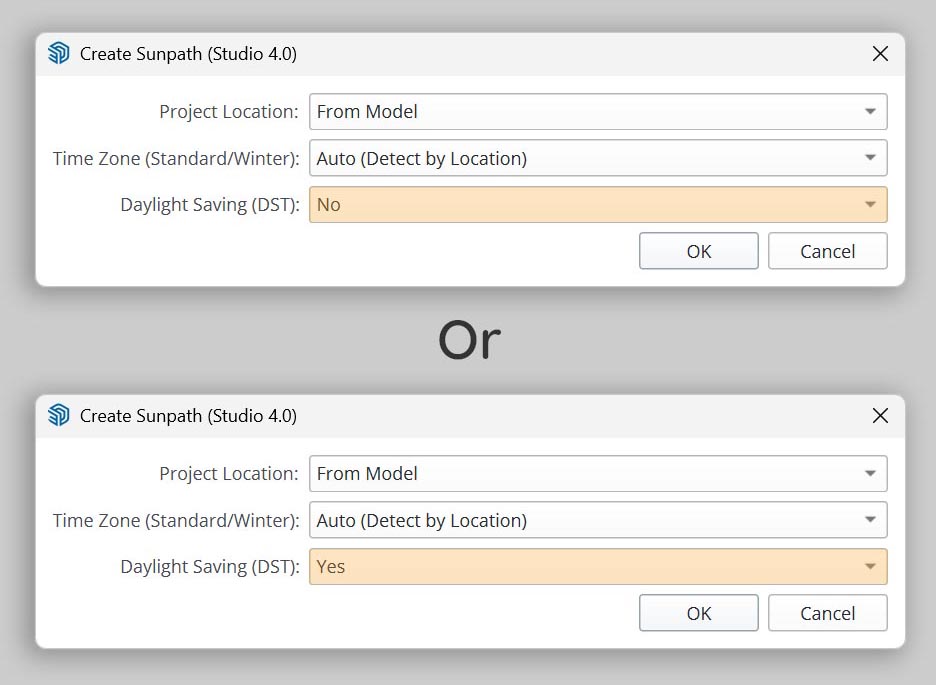
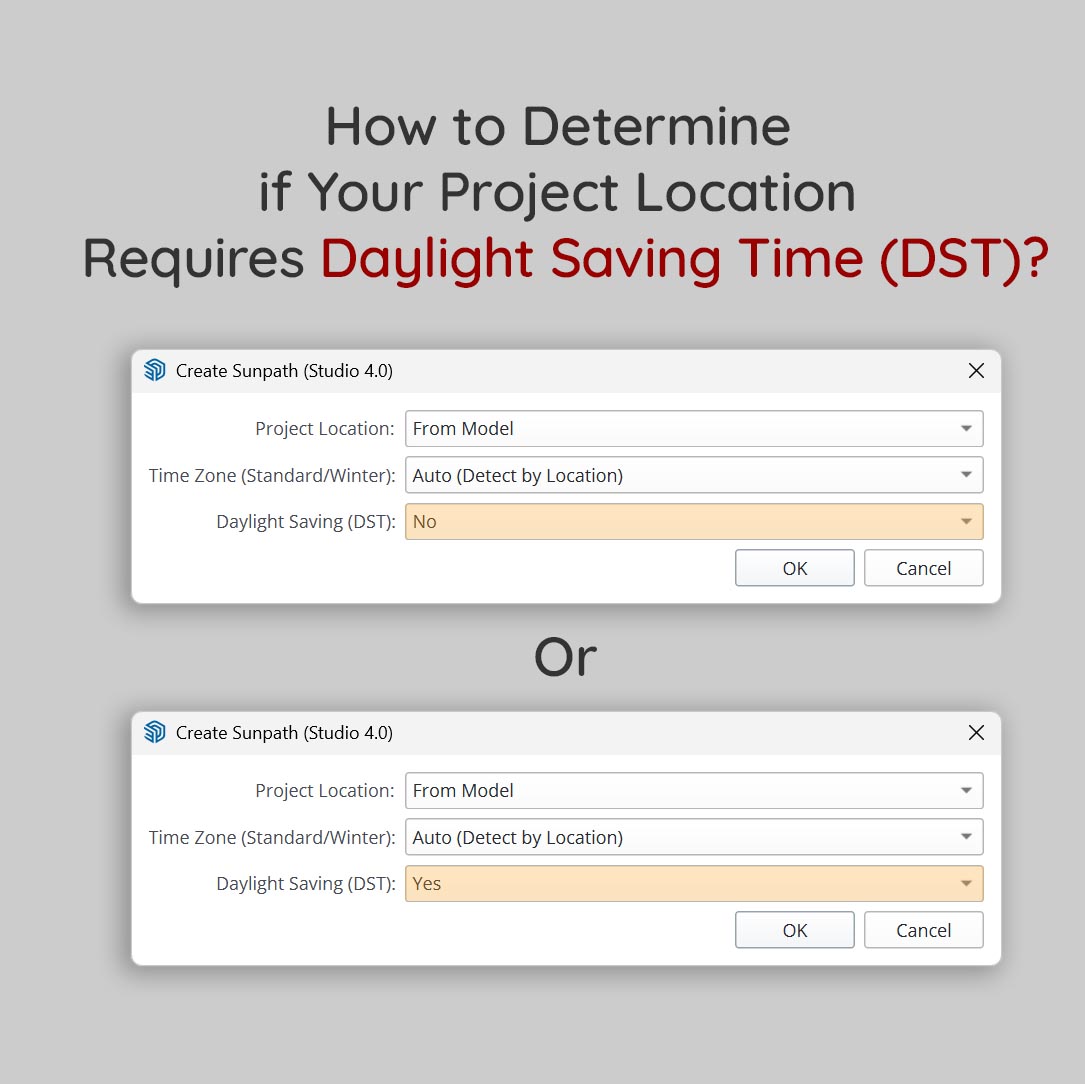
- If the location DOES NOT observe DST (e.g., Singapore, Vietnam): Keep the DST toggle OFF.
- If the location DOES observe DST (e.g., London, New York): Simply turn the DST toggle ON in the plugin.
5. How Sun Diagram's Smart DST Works:
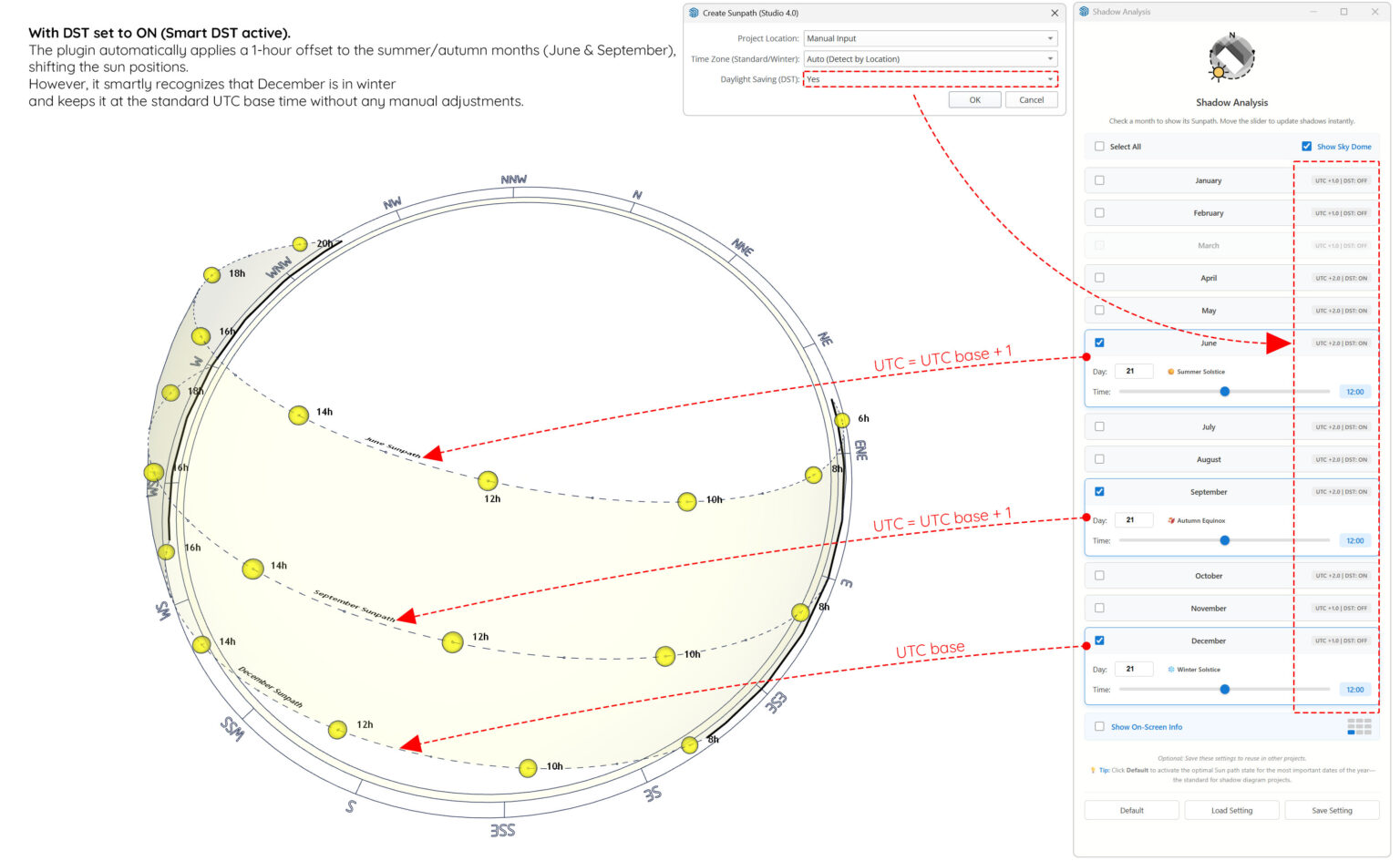
Once you enable DST for a specific location, the plugin does the heavy lifting for you. It automatically checks if your selected analysis date falls within that region’s active DST timeframe.


Figure 1: With DST set to ON (Smart DST active).
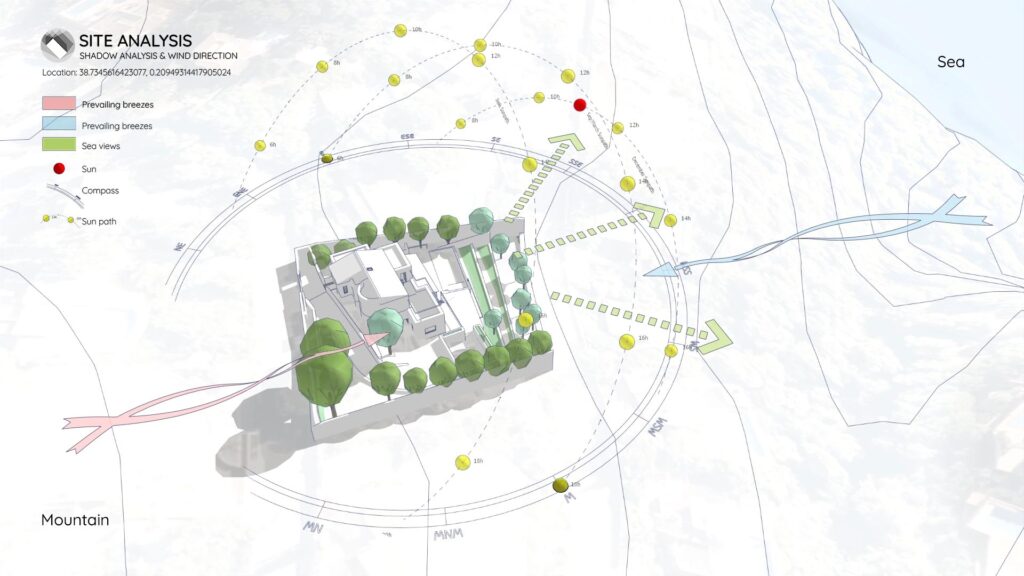
The plugin automatically applies a 1-hour offset to the summer/autumn months (June & September), shifting the sun positions.
However, it smartly recognizes that December is in winter and keeps it at the standard UTC base time without any manual adjustments.
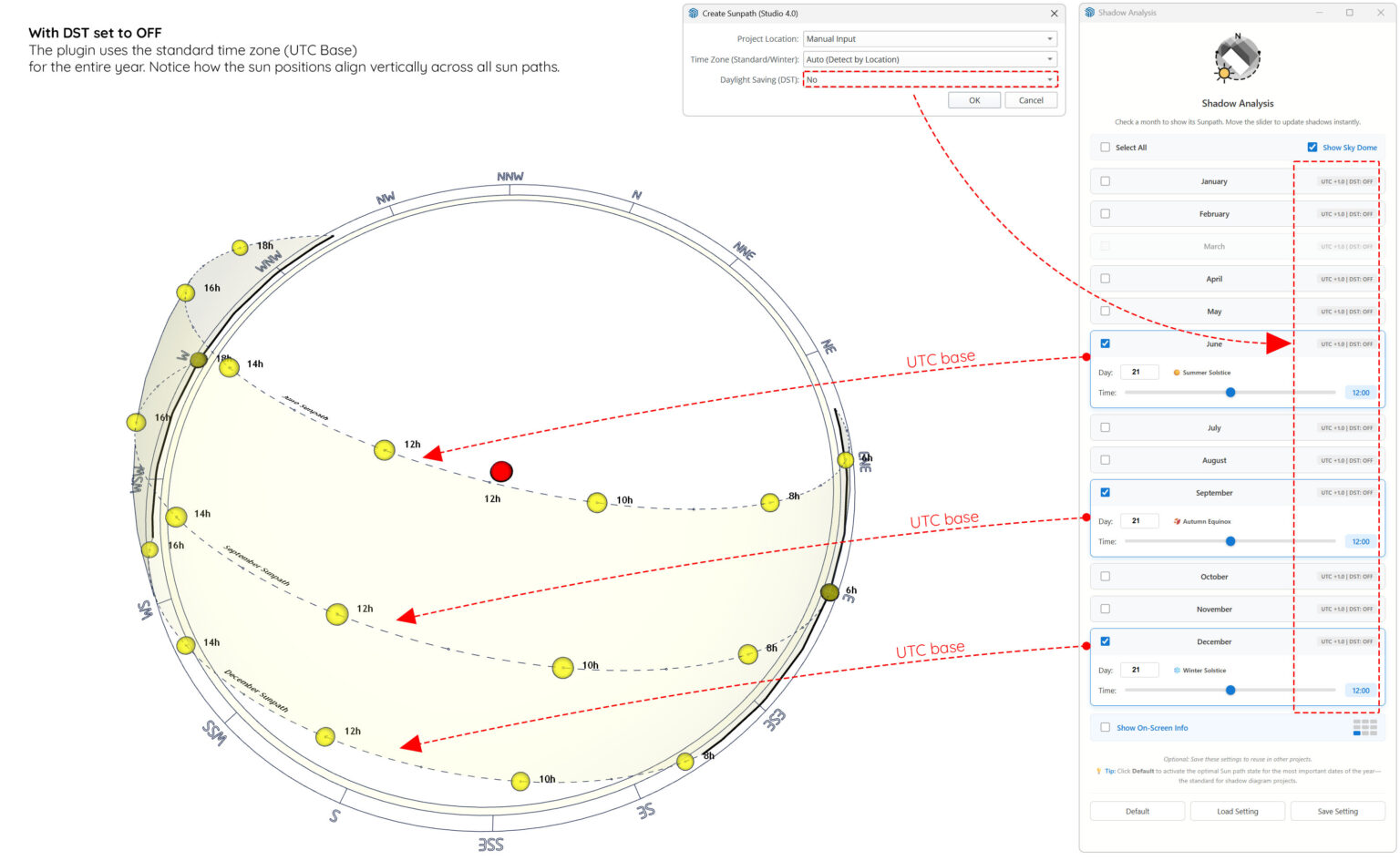

Figure 2: With DST set to OFF.
The plugin uses the standard time zone (UTC Base) for the entire year. Notice how the sun positions align vertically across all sun paths.
You just turn it on once, and Sun Diagram ensures your annual sun studies and shadow analyses are 100% accurate year-round without any extra clicks!
👉 Download Sun Diagram at SunDiagram.com
About the Author
Nam Nguyen
Architect & Software Developer | Founder of Febhouse & ArchiDiagram
I build tools like Sun Diagram, Dynamic Symbols, and Shadow Slice to help architects work smarter.