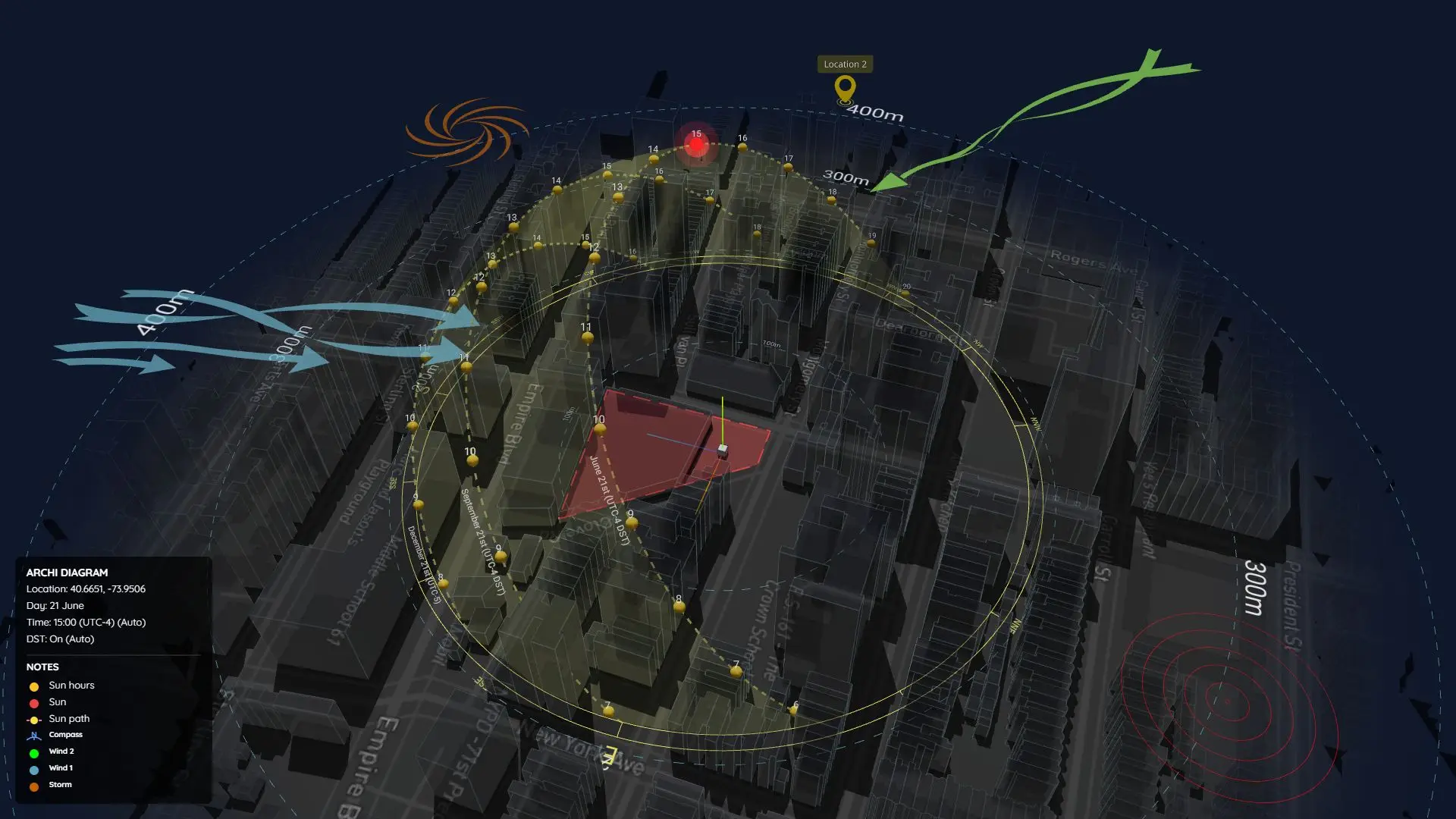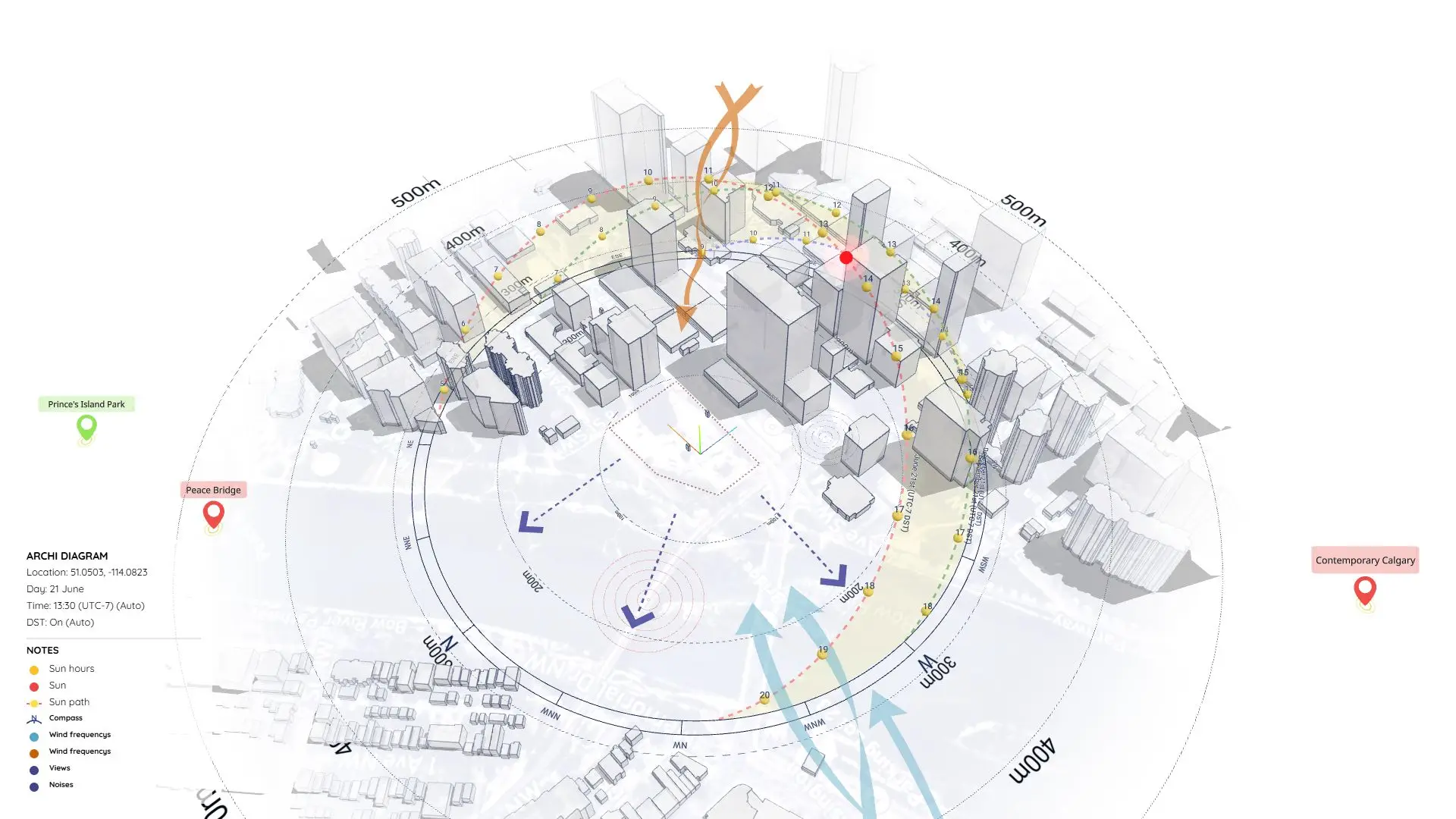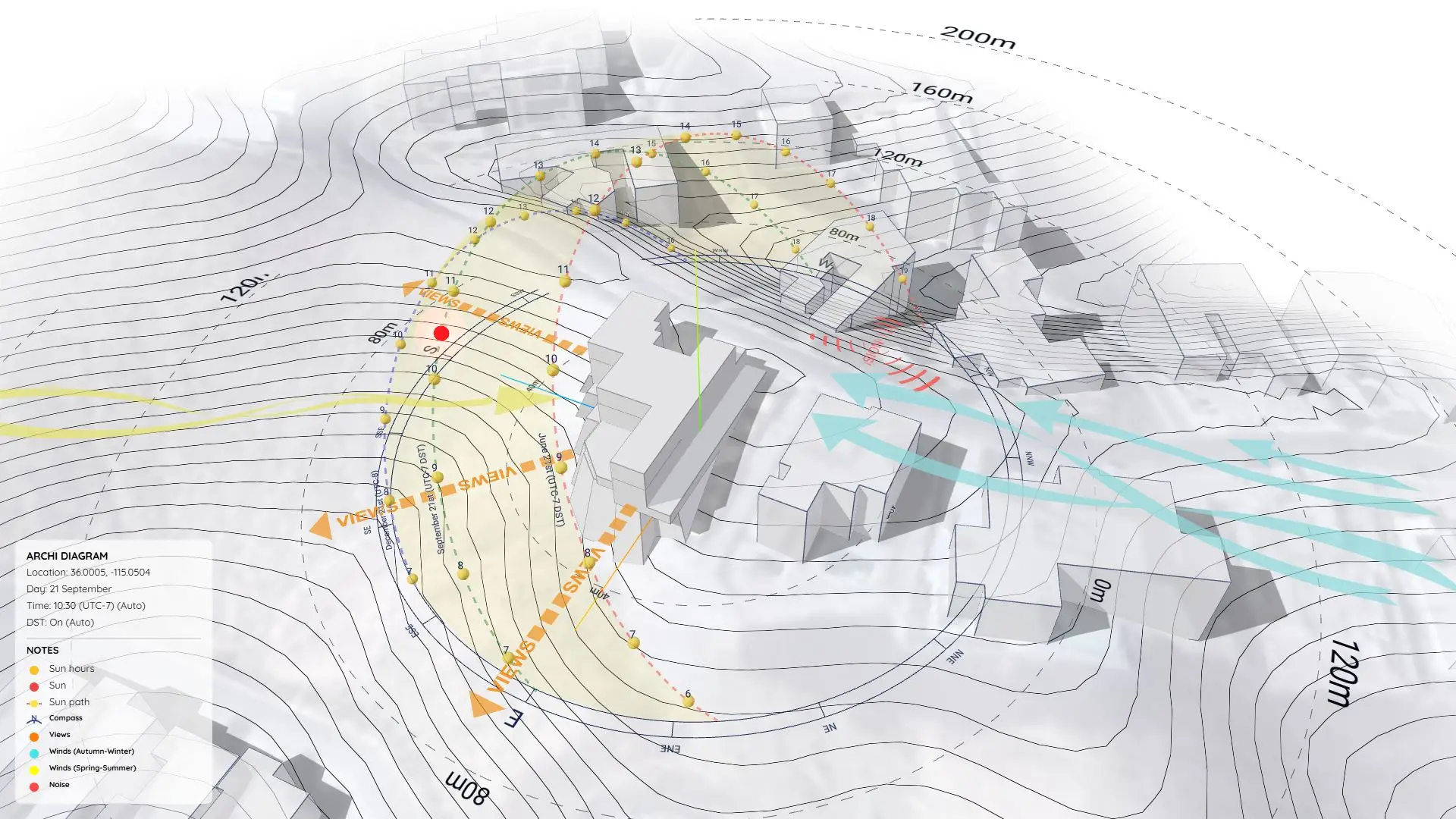


Site Context Mapping with Dynamic Symbols in SketchUp – Fast & Flexible Diagramming
https://www.youtube.com/watch?v=PxbwlZcXd4U
Why Site Context Mapping Is Important
Every project begins with a place—and understanding that place is essential to designing something meaningful.
Site Context Mapping is how we visualize what surrounds a project: adjacent buildings, roads, open spaces, traffic, public infrastructure, and views.
Without a clear context diagram, your design risks feeling isolated or disconnected. With the right tools, creating one is quick, precise, and visually compelling.
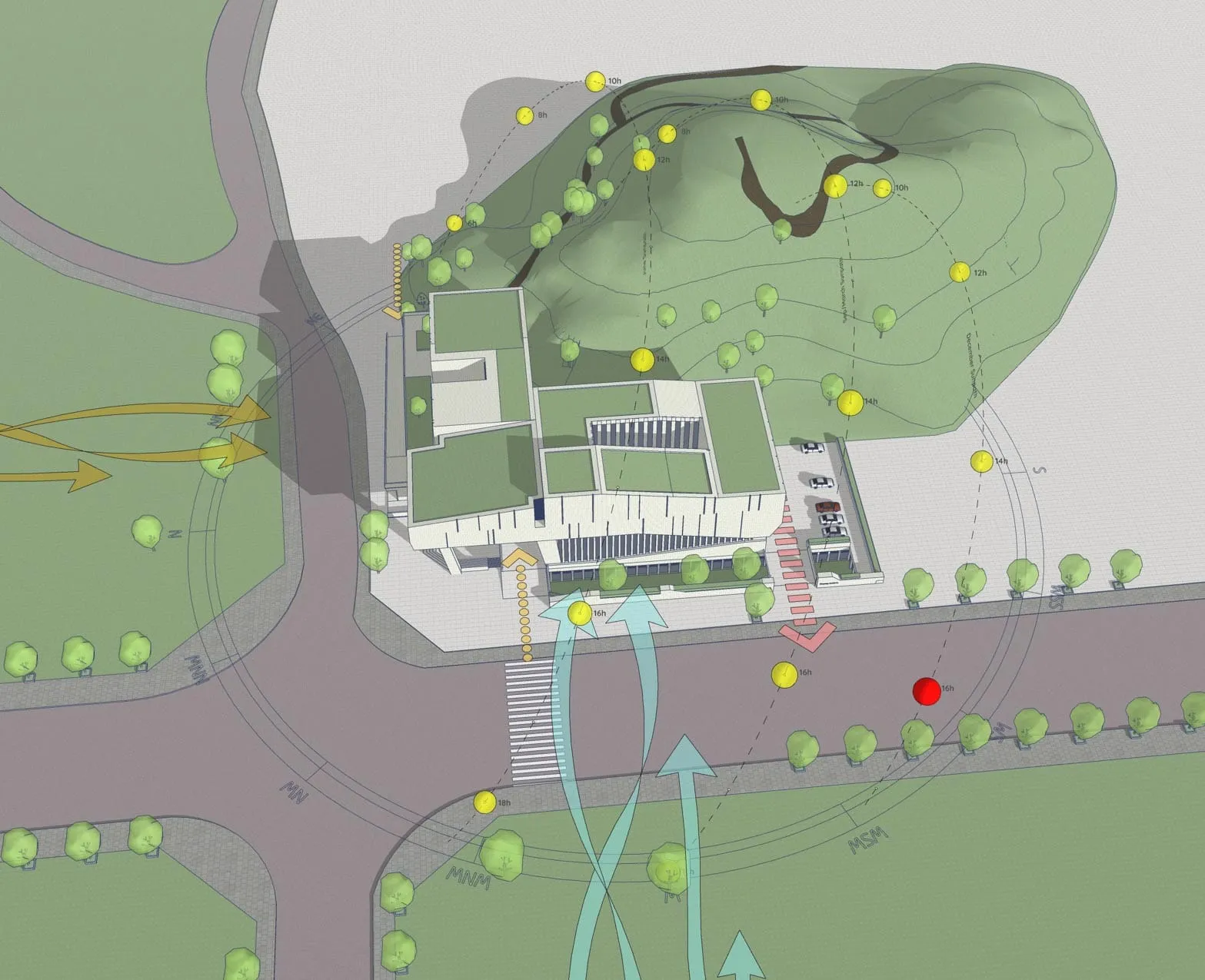
In this sample project (Project 23), I’ll walk you through how I built a 3D Site Context Map using only SketchUp, the Sun Diagram plugin, and Dynamic Symbols.
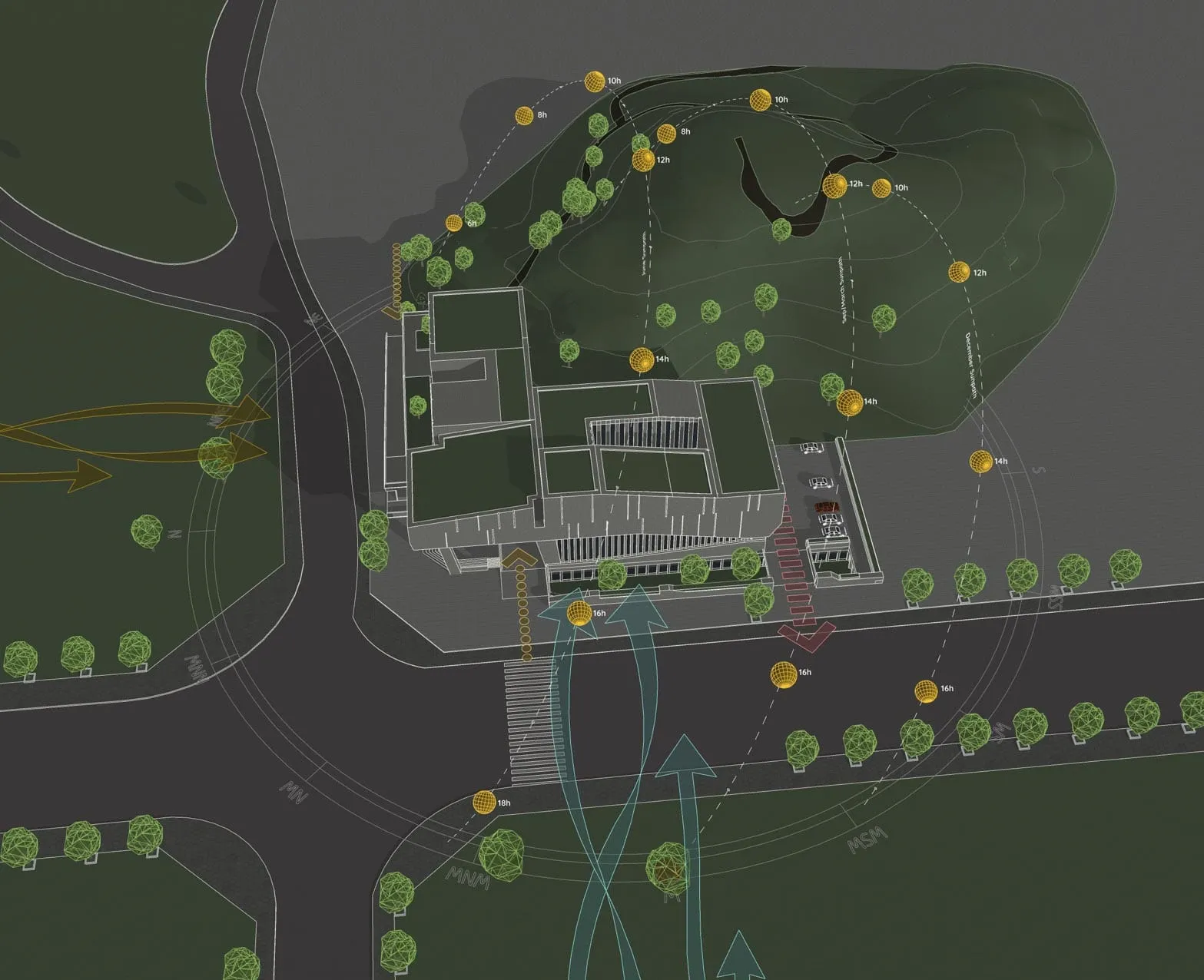
The Tools Used in the Diagram
To build the diagram shown in the video, I relied on two specialized SketchUp plugins:
- Sun Diagram: Generates an accurate 3D sun path and shadow analysis for any time and date. It visually proves how sunlight affects the site and nearby buildings—essential data for context awareness and passive design.
- Dynamic Symbols: Drops in animated 3D symbols (like wind arrows or zoning markers) that you can toggle and adjust with a single click.
Both tools speed up the diagramming process while keeping your presentations clean and professional.
Benefits of This Workflow
- Efficient: Built entirely in SketchUp, from modeling to layout.
- Editable: Symbols and layers stay dynamic and reusable.
- Professional: Perfect for reports, council permits, or design presentations.
- Visual: Helps clients and stakeholders immediately understand the site’s context.
Final Thoughts
Understanding the surrounding context isn’t just a technical step—it’s where good design begins. By combining Sun Diagram and Dynamic Symbols in SketchUp, you can build strong, clear, and compelling diagrams with minimal effort.
Use this method early in your process to unlock deeper design thinking and communicate it with total confidence.
Download Project Files
Want to dissect the layers and see how it works? Download the free project file below!
On Gumroad, simply enter $0 in the “Name a fair price” box to download for free.
(No bank or card information required.)
If you want to support me, you can enter any amount you wish. Thank you!
(Need a step-by-step tutorial on this workflow? Check out our updated guide: /create-architectural-diagrams/)