
How to Create a Site Analysis Video with Sun Diagram, Photoshop, and CapCut
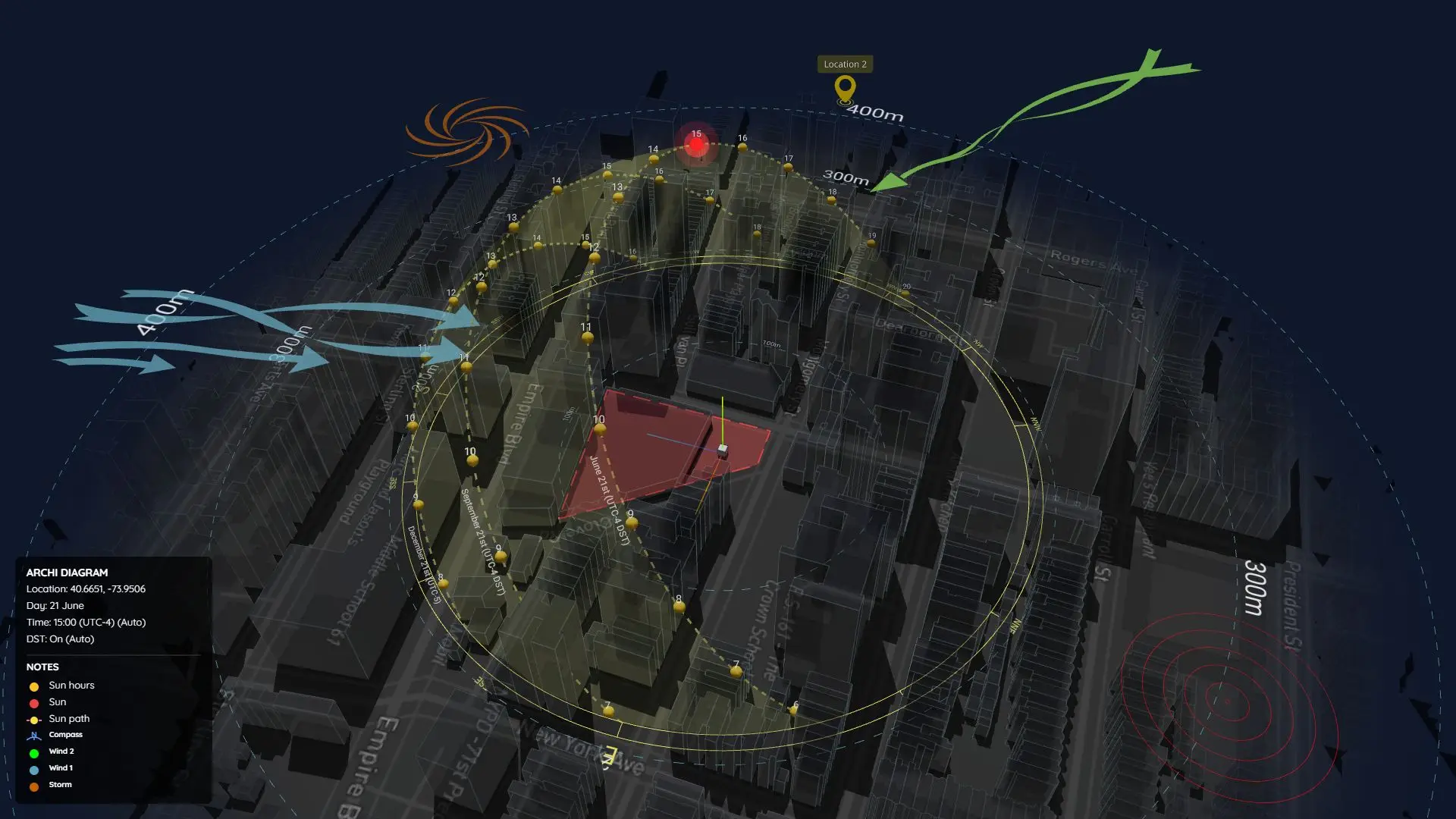
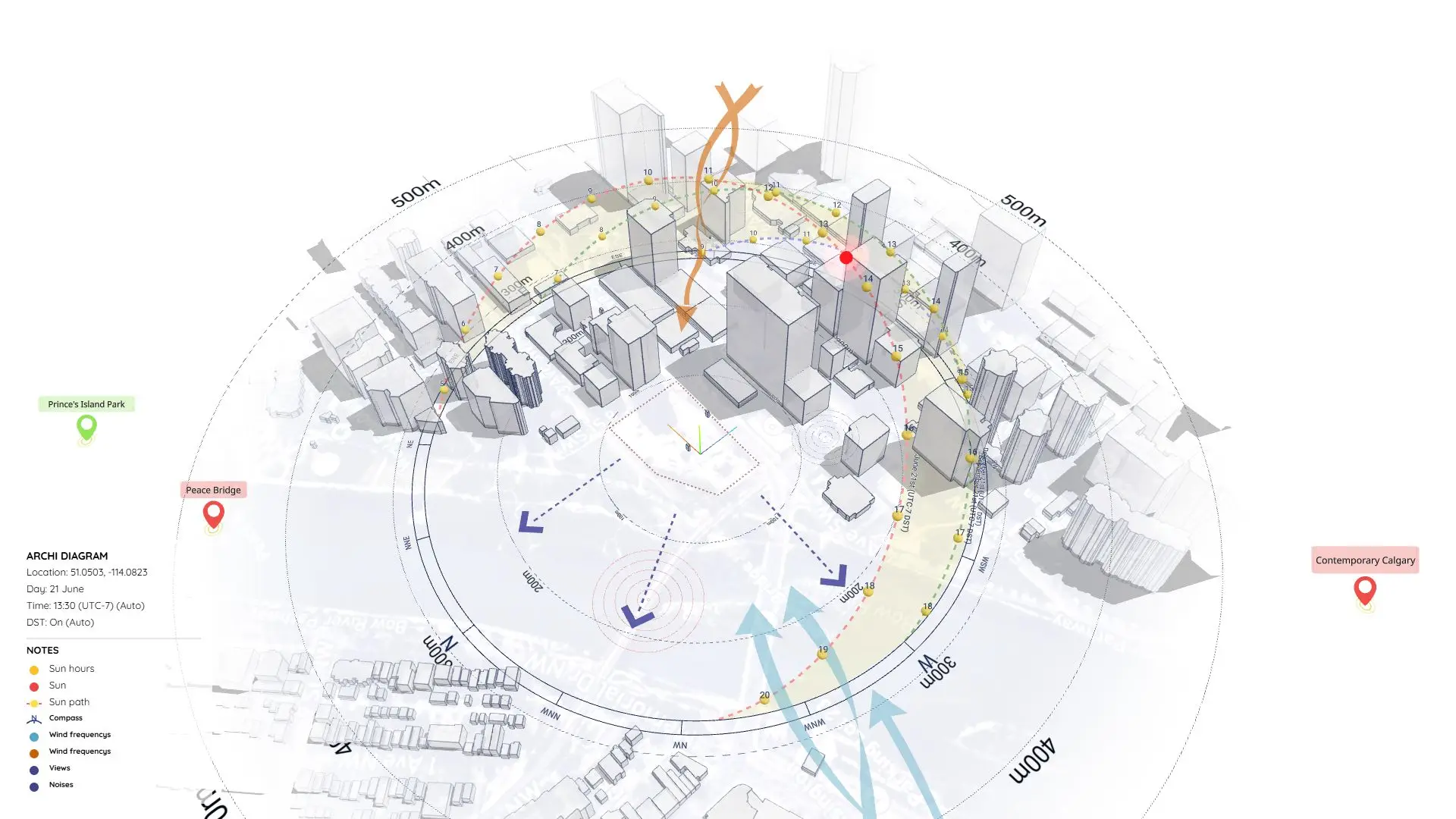
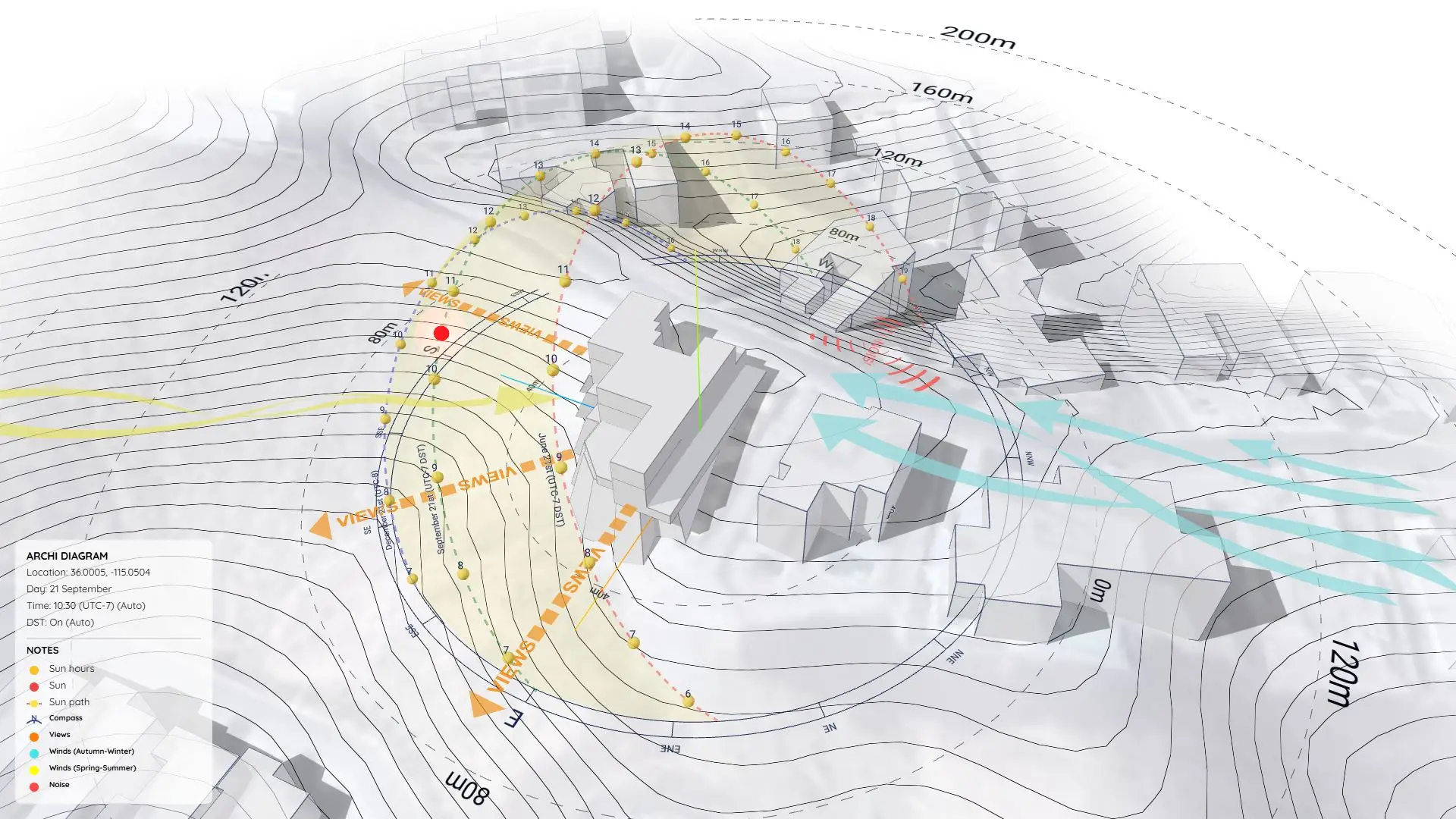
Want to create an animated Site Analysis video like the one below? This sample project (Project 20) walks you through the exact pipeline I use, from SketchUp to the final CapCut edit.
https://www.youtube.com/watch?v=lg9PcXtOMtU
🔹 Step 1: Create a 3D Sun Path
First, use the Sun Diagram plugin to generate a highly accurate 3D visualization of the sun’s path right over your architectural model.
👉 Download the plugin here: sundiagram.com/sun-diagram
🔹 Step 2: Add Your Symbols
Next, drop in your wind arrows, pedestrian markers, and access nodes.
- You can use our free static Dynamic Symbols.
- Or, use the full Dynamic Symbols Plugin to create advanced 3D markers. (User guide: sundiagram.com/dynamic-symbols)
🔹 Step 3: Export the Image Sequence
Use the export tools built into the Sun Diagram plugin to automatically export a sequence of images (shadow frames) as the sun moves across your site.
🔹 Step 4: Combine Images into a Video
Open Photoshop (or any video tool like Premiere/After Effects) and merge the exported image sequence into a video timeline.
(Not sure how? Here’s a quick 1-minute guide on how to combine images into a video).
🔹 Step 5: Final Polish in CapCut
Finally, I import the raw video into CapCut for the finishing touches—adding background music, smooth transitions, text overlays, and final layout.
🎬 This is where everything comes together into a clear, engaging presentation!
Download Project Files
Want to see how it’s done up close? Download the project files below to study the exact SketchUp setup.
On Gumroad, simply enter $0 in the “Name a fair price” box to download for free.
(No bank or card information required.)
If you want to support me, you can enter any amount you wish. Thank you!